
Microsoft Excel: Address Verification Add-in documentation
The Microsoft Excel: Address Verification Add-in validates and returns relevant metadata for US and international addresses.
To process US addresses using this add-in, you'll need an active subscription for US Address Verification or US Rooftop Geocoding. To process international addresses, you'll need an active International Address Verification or International Geocoding license. If you don't have a license, sign up here for a 42-day free trial. Learn more about the features and capabilities of the Microsoft Excel: Address Verification Add-in here.
Quick start video
Getting started
After installing from the store, navigate to the "Smarty" section on the top ribbon in Excel.
Go through a quick authentication process
Click the "Enter Credentials" button at the top of the Smarty tool sidebar. Before entering your credentials, you'll need an active Smarty subscription.
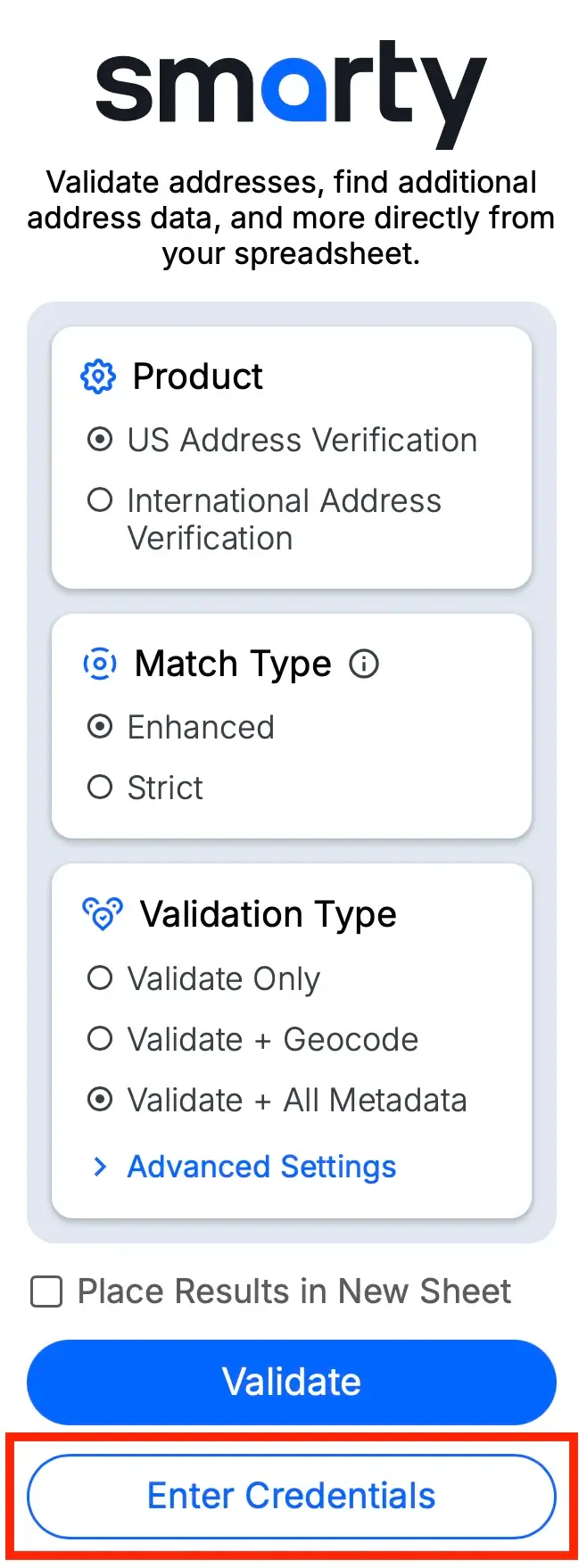
A new window will pop up, prompting you to enter your Auth ID and Auth Token. These values are found within your Smarty account under the 'API Keys' tab.
Auth ID and Auth Token are stored securely within the sheet's memory. This allows the sheet to be worked on and shared collaboratively.
- Click submit.
Address formatting
For US addresses:
There are several ways you can format your spreadsheet before validating a list of US addresses. The easiest method is to simply paste your address list into a single column, leaving the first row of your spreadsheet blank, so the add-on can automatically populate headers during validation.
If you'd rather parse the components of your addresses into columns, use one of the three combinations shown below. The top row of your spreadsheet must include these column headers, spelled exactly as you see here:
street|city|state|zipcodestreet|city|statestreet|zipcode
If you have secondary information (apartment/suite/etc.) in a separate column, label that column secondary. This can be added to any of the first three combinations shown above.
For example:street | secondary | city | state | zipcode
| street | city | state | zipcode |
| 11310 Old Seward Highway | Anchorage | AK | 99515 |
| 3211 Edwards Lake Pkwy | Birmingham | AL | |
| 11219 N Rodney Parham Road | 72212 | ||
| 4507 North US Highway 89 | Flagstaff | AZ | 86004 |
For international addresses:
If your address list includes international addresses, you’ll need to follow different formatting standards. The quickest way to format your spreadsheet is to list each address’s country in the first column, with the header "country" in the top row, then list each address in the second column, below the header "freeform."
If you'd rather organize your spreadsheet by address components, follow one of these three combinations:
country|address1|locality|administrative_area|postal_codecountry|address1|locality|administrative_areacountry|address1|postal_code
If you follow the formatting of the second combination, your spreadsheet will look like this:
| country | address1 | locality | administrative_area |
| Germany | Marienplatz 1, München, Bayern, 80331 | Berlin | Berlin |
| Russia | Krasnaya Ploshchad 1 | Moscow | Moskva |
| Japan | 1-1 Chiyoda | Chiyoda-ku | Tokyo |
| Germany | Römerberg 27 | Frankfurt am Main | Hessen |
Still not quite sure? Take a peek at this sample spreadsheet.
Using the add-in
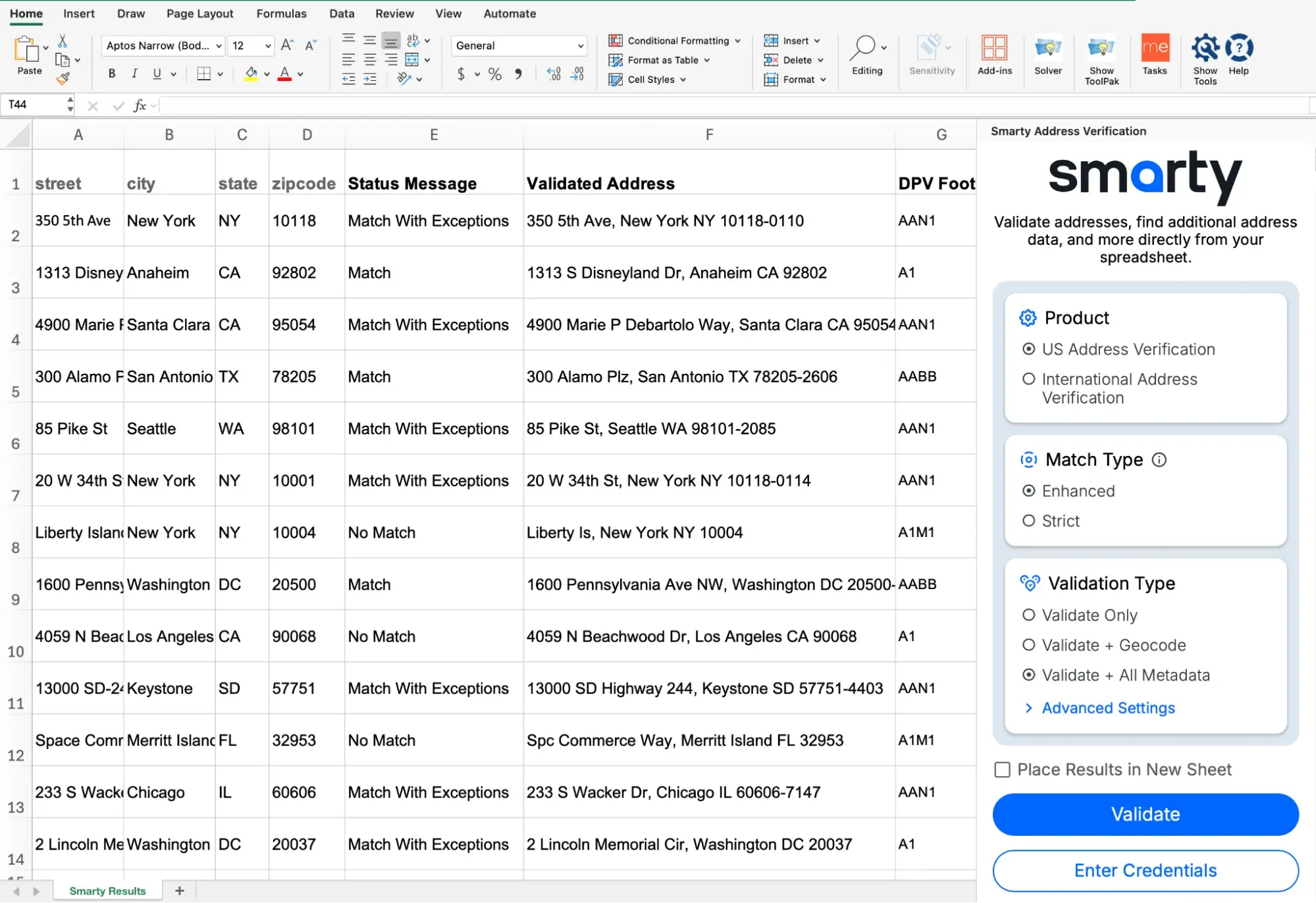
Once you have your column names and addresses in the sheet, you're ready to go! To open and use the add-on, follow these steps:
- Choose your product.
- If using US Address Verification, choose between an "enhanced or strict" match type.
Learn more about strict vs. enhanced here. - Choose a validation type.
- Validate Only
Returns:
– Status message ex. "Address matched"
– Validated addresses
– DPV footnotes - Validate + Geocode
Returns the same info as 'Validate Selected Addresses', plus:
– Geocodes
– Geocode precision level - Validate + All Metadata
Returns all the data available from the US Street Address API, including the validated address and metadata. - Extra options may pop up in "Advanced Settings" for different products and validation types, including:
– Advanced License Input (For those with special licenses)
– Format
– County Source
– Features
– Output Language
- Validate Only
- Choose to insert the results on the same page you're currently working in (adjacent to the highlighted cells) or to insert the results into a new sheet.
- Highlight the addresses you would like to verify.
- Click "Validate" and watch the magic happen!
Important notes
- Any existing data in cells where the new address data is placed will be overwritten
- Choose to insert the results on the same page you're currently working in (adjacent to the highlighted cells) or to insert the results into a new sheet.
When a user runs one of the Smarty tools, the header data will be populated automatically if space is available
*Leave the top row of cells empty so the headers can populate correctly
4 more ways to validate in bulk
Was this helpful?