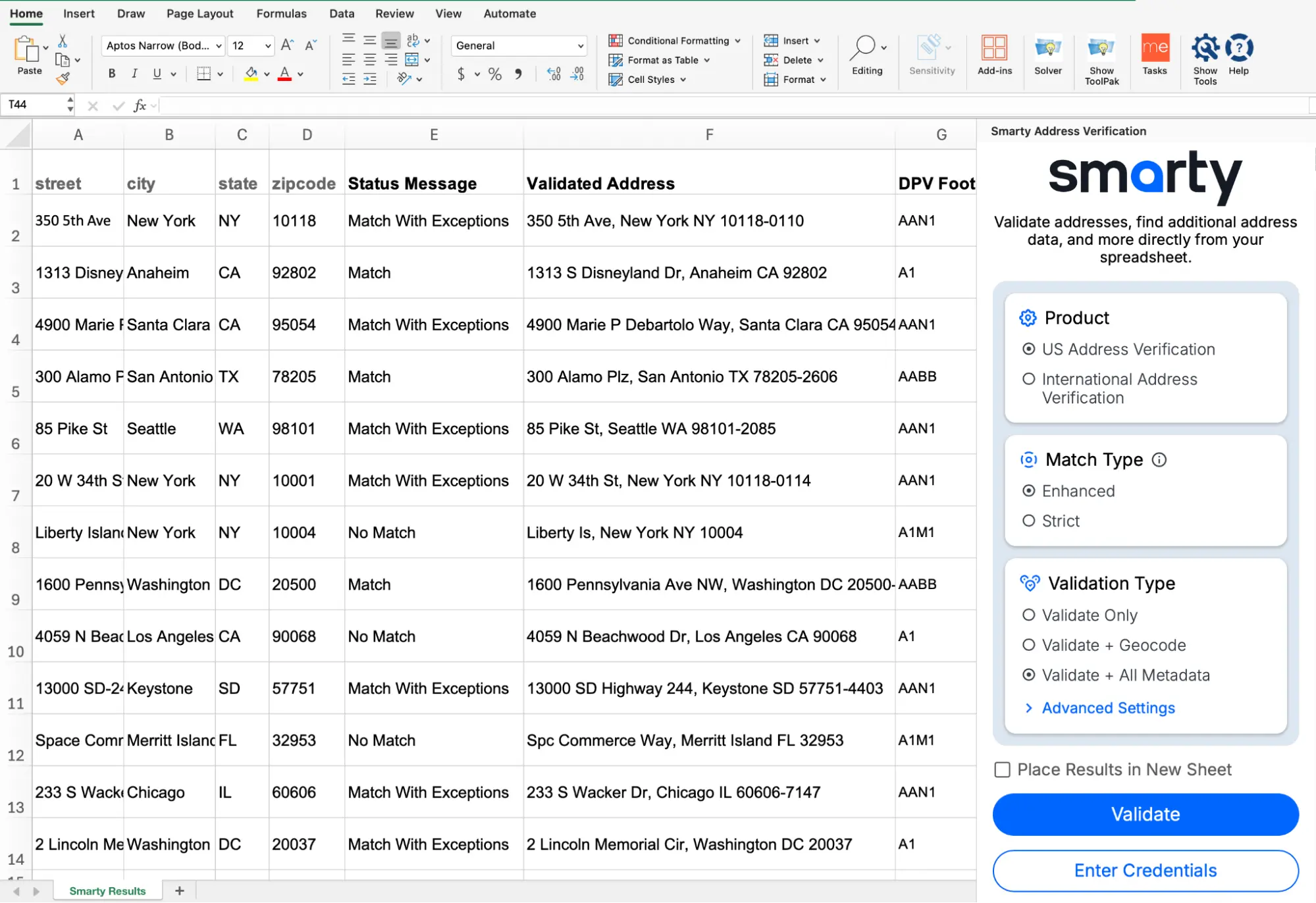
Microsoft Excel Address Verification Add-in
The Excel Smarty Address Verification add-in validates and returns relevant metadata for US and international addresses. With a US Rooftop Geocoding subscription, users can request rooftop-precision geocodes. The Excel Smarty Address Verification add-in validates and returns relevant metadata for US and international addresses. With a US Rooftop Geocoding subscription, users can request rooftop-precision geocodes.
Quick start video
Getting started
Install the plugin here (opens in new tab)
Note: To use US Address Verification, you must have an active Smarty US Address Verification or US Rooftop Geocoding license. To use International Address Verification, you will need to have an active Smarty International Address Verification or International Geocoding license. If you don't have a license, sign up here for a 42-day free trial.After installation from the store, navigate within Excel to the "Smarty" portion of the top ribbon.
Go through a quick authentication process
-
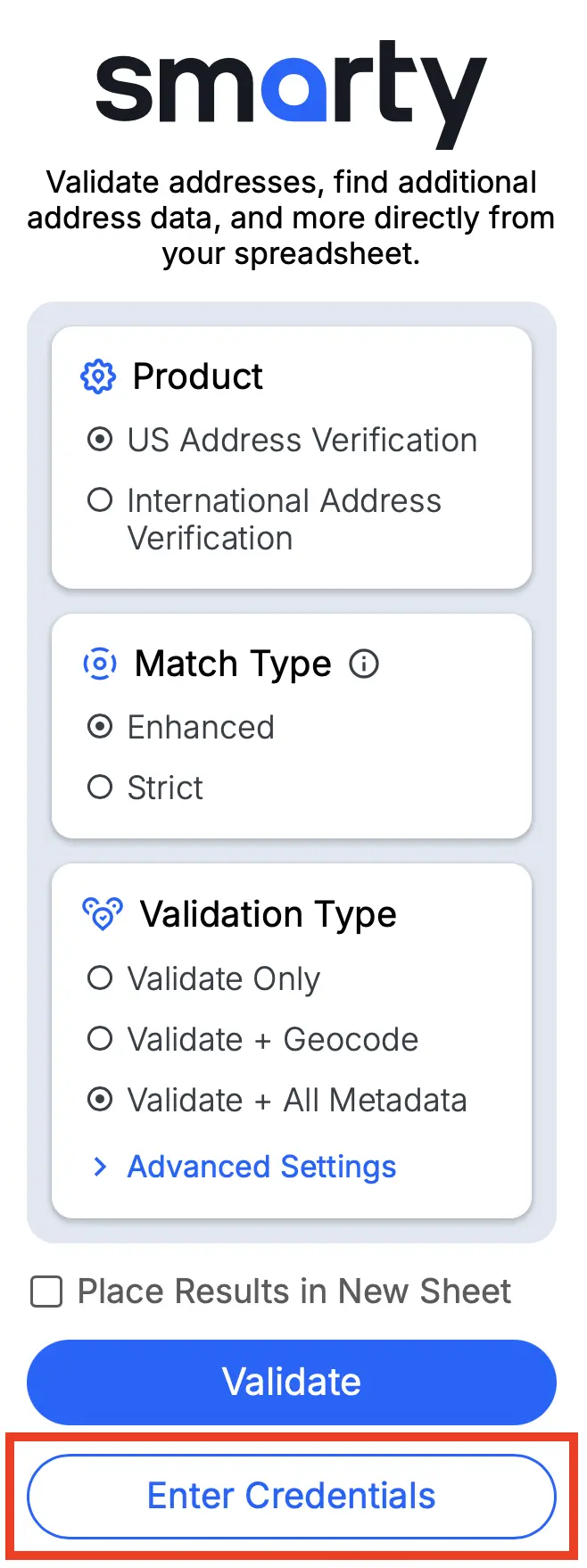
Click the "Enter Credentials" button on top of the Smarty tool sidebar.
-
A new window will pop up that allows you to enter your Auth ID and Auth Token. These values are found within your Smarty account under the 'API Keys' tab
Auth ID and Auth Token are stored securely within the sheet's memory. This allows the sheet to be worked on and shared collaboratively. -
Click submit
Address Formatting
Organize your data into columns using one of the combinations shown below. (The more data provided, the better.) The top row MUST consist of column titles, spelled exactly as you see here.
For US Addresses:
street | city | state | zipcodestreet | city | statestreet | zipcodeaddress (entire address in a single column)
If you have secondary information (apartment/suite/etc.) in a separate column, label that column
secondary. This can be added to any of the first three combinations shown above.
For example:
street | secondary | city | state |
zipcode
| street | city | state | zipcode |
|---|---|---|---|
| 11310 Old Seward Highway | Anchorage | AK | 99515 |
| 3211 Edwards Lake Pkwy | Birmingham | AL | |
| 11219 N Rodney Parham Road | 72212 | ||
| 4507 North US Highway 89 | Flagstaff | AZ | 86004 |
For International Addresses:
country | address1 | locality |
administrative_area | postal_codecountry | address1 | locality |
administrative_areacountry | address1 | postal_codecountry | freeform| COUNTRY | ADDRESS1 | LOCALITY | ADMINISTRATIVE_AREA |
|---|---|---|---|
| Germany | Marienplatz 1, München, Bayern, 80331 | Berlin | Berlin |
| Russia | Krasnaya Ploshchad 1 | Moscow | Moskva |
| Japan | 1-1 Chiyoda | Chiyoda-ku | Tokyo |
| Germany | Römerberg 27 | Frankfurt am Main | Hessen |
Still not quite sure? Take a peek at this sample spreadsheet.
Using the add-in
Once you have your column names and addresses in the sheet, you're ready to go! To open and use the add-on, follow these steps:
- Choose your product.
-
If using US Address Verification, choose between an
"enhanced or strict" match type.
Learn more about strict vs. enhanced here. -
Choose a validation type.
-
Validate Only
Returns:
– Status message ex. "Address matched"
– Validated addresses
– DPV footnotes -
Validate + Geocode
Returns the same info as 'Validate Selected Addresses', plus:
– Geocodes
– Geocode precision level -
Validate + All Metadata
Returns all the data available from the US Street Address API, including the validated address and metadata. -
Extra options may pop up in "Advanced Settings" for different product and validation
types, including:
– Advanced License Input (For those with special licenses)
– Format
– County Source
– Features
– Output Language
-
Validate Only
- Choose to insert the results on the same page you're currently working in (adjacent to the highlighted cells) or to insert the results into a new sheet.
- Highlight the addresses you would like to verify.
- Click "Validate" and watch the magic happen!
Important notes
-
Any existing data in cells where the new address data is placed will be overwritten
- Choose to insert the results on the same page you're currently working in (adjacent to the highlighted cells) or to insert the results into a new sheet.
-
When a user runs one of the Smarty tools, the header data will be populated automatically if space is available
*Leave the top row of cells empty so the headers can populate correctly