
WooCommerce Address Autocomplete and Validation Plugin documentation
This plugin adds real-time address autofill and verification to your WooCommerce block checkout. Customers get address suggestions as they type, and at order submission, the plugin offers a standardized, corrected address when one is available—catching typos before the order is placed.
Contents
- Requirements
- Installation
- Connecting your Smarty account
- Configuring services
- What customers see at checkout
- US territories and ZIP+4
- Frequently asked questions
Requirements
To use the WooCommerce address autocomplete and validation plugin, you'll need to ensure you meet the following requirements:
- Install WordPress 6.4+ and PHP 7.4+
- Install and enable WooCommerce with the block checkout. The classic shortcode checkout isn't supported.
- Create a Smarty account with at least one embedded key and an active subscription to at least one address verification or address autocomplete service (US or international). Sign up here.
You don't need all four services. The plugin turns on only the features your account is subscribed to. See Configuring services.
Installation
Install the plugin.
In your WordPress admin dashboard, go to:
Plugins → Add New.
Search for WooCommerce Address Autocomplete and Validation Plugin.
Click Install Now.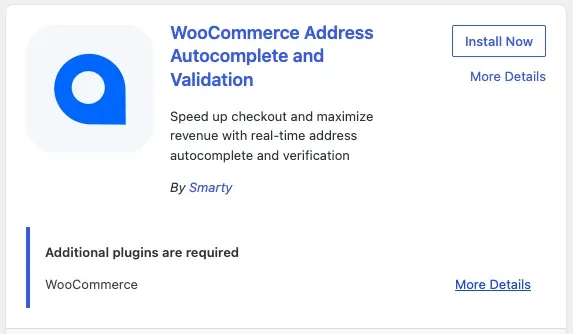
Activate it.
Click Activate from the plugin listing or the Plugins screen.

Open the settings.
Go to WooCommerce → Settings → Integration → WooCommerce Address Autocomplete and Validation Plugin.

Connecting your Smarty account
Linking your store takes a few clicks. You never copy or paste an API key.
- On the plugin settings page, click Connect with Smarty.
- You'll be taken to a Smarty sign-in page. Sign in with the email and password for your Smarty account.
- Smarty asks whether to allow the WooCommerce plugin to access your account. The plugin gets read-only access to your embedded keys (their names and authorized domains) and your subscriptions. Approve the request.
- You'll be automatically returned to the plugin settings page with the message "Signed in!" Select a key below, then click Save changes.
If you see "No embedded keys found on this account," create an embedded key in your Smarty account under the API Keys section, then click Connect with Smarty again.
Select an embedded key
The plugin loads your account's embedded keys into the Select an embedded key dropdown. Each key is labeled with its name and the website domains it's authorized for. Choose which key this store should use, then click Save changes. All lookups made through the plugin count toward that key's usage.
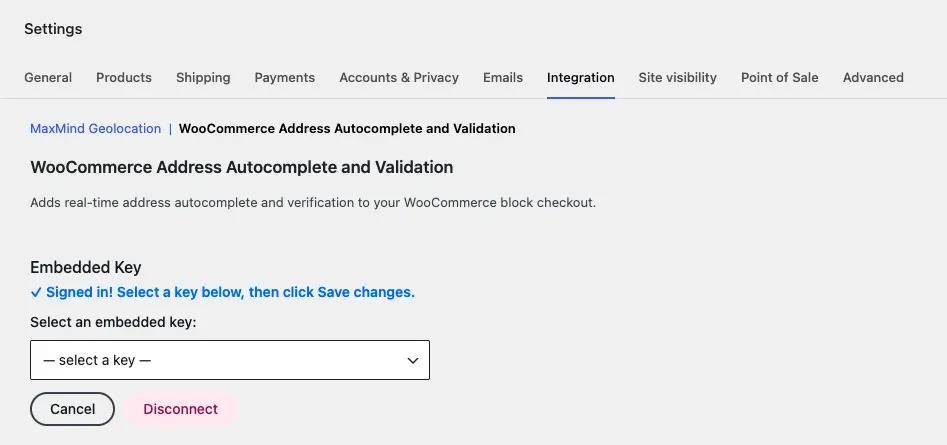
The key you choose must be authorized for your store's domain (for example, yourstore.com), or lookups will fail. The plugin doesn't check this for you. Manage keys and their domains in your Smarty account under the API Keys section.
Changing keys or disconnecting
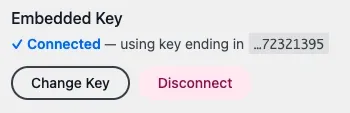
Once saved, the settings page shows Connected — using key ending in … followed by the last characters of your key. Click Change Key to pick a different key, or Disconnect to unlink your Smarty account from the store.
Configuring services
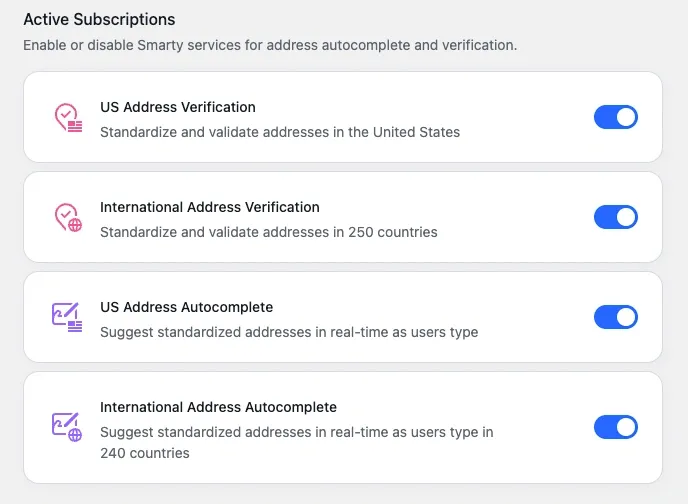
After connecting your Smarty account, the Active Subscriptions section appears on the same plugin settings page, below the embedded key. There is a toggle for each of the four Smarty services:
- US Address Verification
- International Address Verification
- US Address Autocomplete
- International Address Autocomplete
The plugin checks which of these services your Smarty account is subscribed to. Services you're subscribed to are turned on automatically. Services you're not subscribed to are labeled Not subscribed and can't be turned on until you sign up for a qualifying free trial or purchase a subscription. You can turn any combination of your subscribed services on or off—all four can run at the same time. Click Save changes when you're done.
What customers see at checkout
With a key selected and at least one service enabled, the plugin works automatically on your block checkout—no theme changes needed. Below are various examples of how each enabled product will look from the end user's perspective.
Address autocomplete
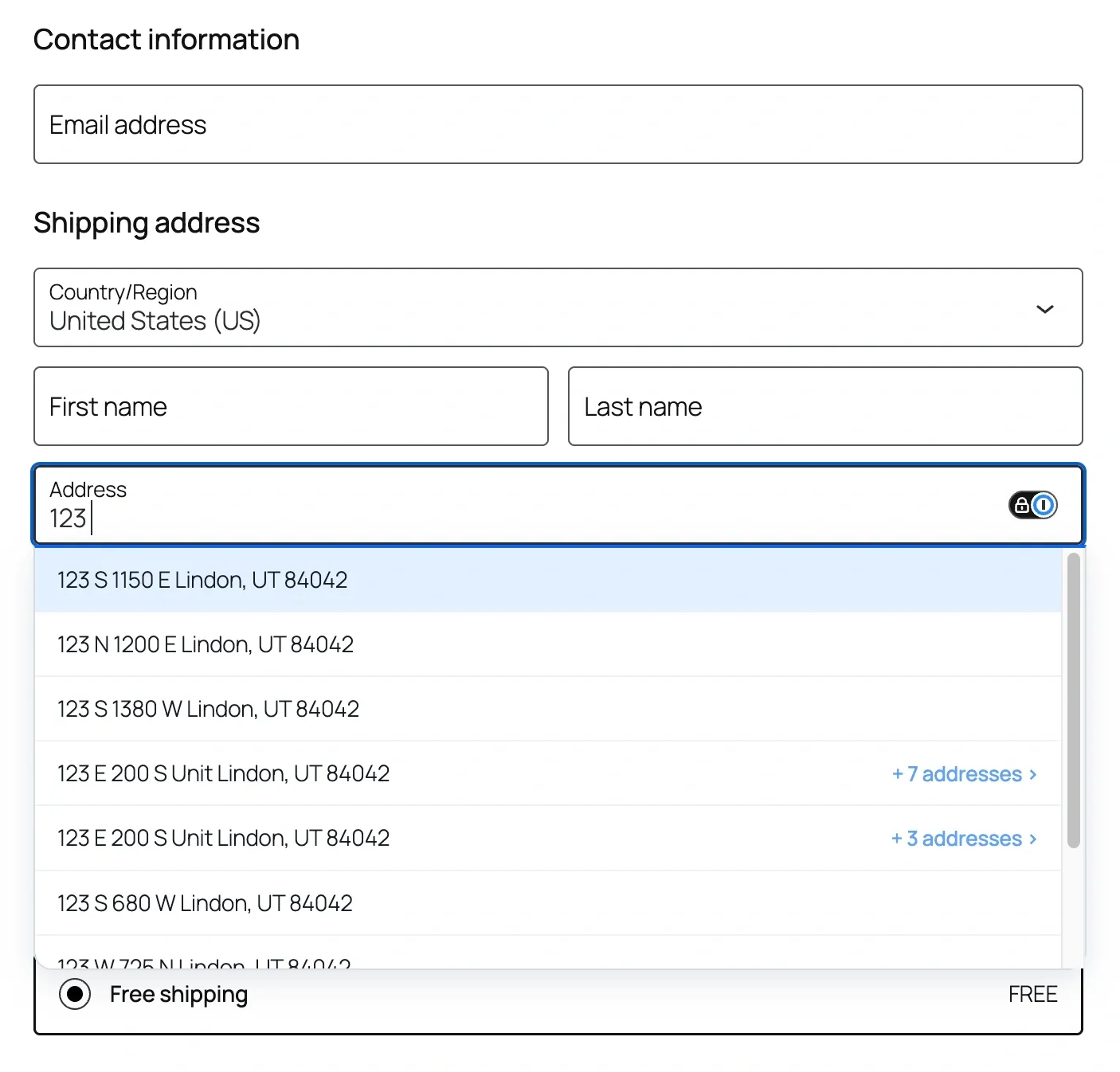
After the customer enters at least 3 characters in the street address field, Smarty suggests up to 10 matching addresses. Choosing a suggestion fills in the street, city, state, and postal code. Autocomplete works in both the shipping and billing address forms and automatically switches between US and international suggestions based on the selected country.
Autocomplete on admin order pages
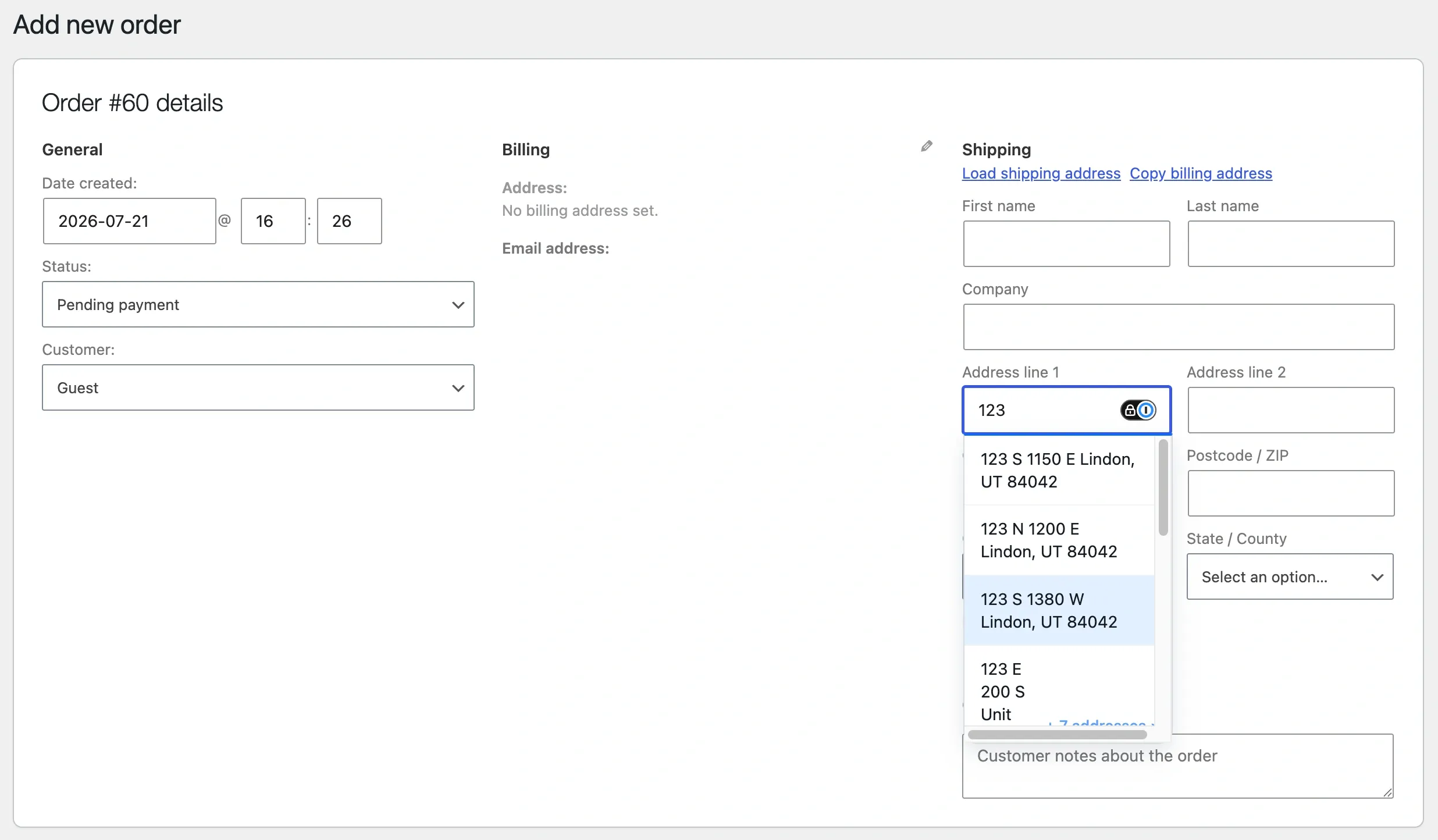
Autocomplete also works when you create or edit an order in the WordPress admin. The same suggestions and form fill will populate the billing and shipping fields.
Address verification
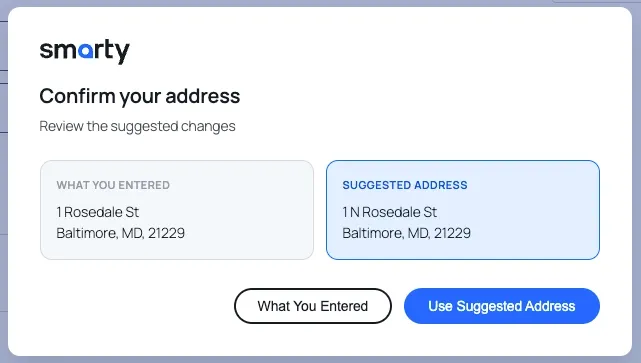
When the customer clicks Place Order, the plugin verifies the shipping address. If Smarty has a standardized version, a modal shows the entered and suggested addresses side by side. The customer can click Use Suggested Address or keep What You Entered.
Missing apartment or suite prompt
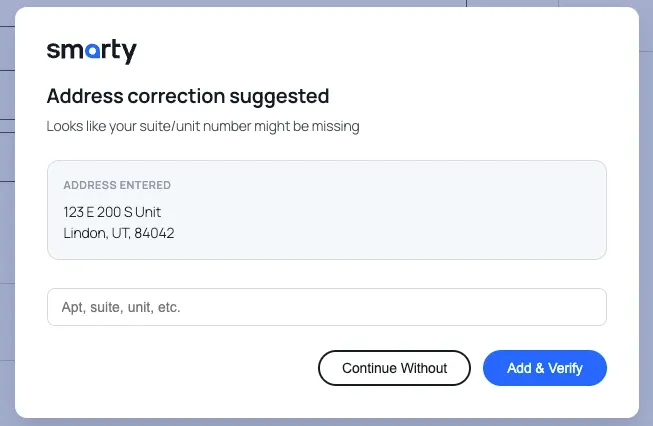
If an address appears to be missing an apartment, suite, or unit number required for delivery, the plugin prompts the customer to add one or continue without it.
Address not found
If Smarty can't verify the address, the customer sees an Address Not Found message and can click Edit Address to fix it or Continue Anyway to place the order as entered.
US territories and ZIP+4
The plugin supports US territories that use ZIP+4 postal codes—American Samoa, Micronesia, Guam, Marshall Islands, Northern Mariana Islands, Palau, and the US Virgin Islands. It accepts the ##### and #####-#### formats and automatically maps each territory to the correct WooCommerce country field.
Frequently asked questions
Is the setup different for international addresses?
No. The setup is the same. If you have a free trial or subscription to international products, turn on International Address Verification and/or International Address Autocomplete, and the plugin handles non-US countries automatically. If a country isn't supported, verification is skipped, and the customer can check out normally.
Do I need a separate key for each subscription?
No. The plugin uses the one embedded key you select for every service. The services you can enable are based on the subscriptions on your Smarty account.
Can I limit suggestions to certain states or countries, or filter out PO boxes?
Not at this time. The plugin has no filtering options. Autocomplete shows up to 10 suggestions, and the only settings are your embedded key and the four service toggles.
Does the plugin save address metadata or SmartyKey to my orders?
No. The plugin only fills in the standardized address fields on the order. It doesn't save metadata such as geocodes, residential/commercial indicators, or SmartyKey®.
What happens if Smarty is unavailable during checkout?
The customer can still place their order. If a lookup fails, the plugin lets checkout continue without verification rather than blocking the sale.
How are lookups consumed when using address autocomplete and address verification products together?
How a lookup is counted depends on both the product and whether you’re working with US or international addresses.
For US addresses
- US Address Autocomplete: Each request to the US Address Autocomplete Pro API counts as one lookup. Because the API is commonly configured to send a request as a user types, a single address entry can use multiple lookups. For example, the standard implementation sends a request per keystroke; each request incurs a lookup. The number of suggestions returned does not affect the lookup count.
- US Address Verification: Each address submitted for verification counts as one lookup. If you submit 1 address, you use 1 lookup; if you submit 10 addresses, you use 10 lookups.
For international addresses
- International Address Autocomplete: Users can type and view multiple rounds of suggestions without consuming additional lookups. One lookup is counted when the user makes a final address selection from the dropdown.
- International Address Verification: Each address submitted for verification counts as one lookup.
Combining product use
If you use the address autocomplete and address verification APIs together, each product consumes lookups according to its own rules. For example, a US customer using autocomplete may perform several autocomplete lookups while typing, then consume an additional address verification lookup when the completed address is submitted.
For US addresses, Smarty’s autocomplete suggestions are always valid addresses. Depending on the information your application needs, you may not need to run address verification again unless a user bypasses selecting an autocomplete dropdown option.
Note: Address verification can still provide additional standardized address data, metadata, and deliverability information beyond the autocomplete suggestion itself.
International Address Autocomplete works differently. While it helps users select standardized addresses and greatly reduces entry errors, most international suggestions correspond to valid addresses. For applications that need a post-submission deliverability check and additional metadata, International Address Verification should be used after autocomplete.
Was this helpful?