


How to add or change an address in Google Maps
Adding or updating an address in Google Maps matters more than ever—especially for delivery drivers and the broader mobility-as-a-service (MaaS) world. And it’s not just you: new construction, rural routes, subdivided lots, apartment pins that drift, and addresses that evolve over time can turn “simple” location data into a near-impossible puzzle.
The good news: you can add or change an address in Google Maps. This guide walks you through how to do it on Android, iPhone/iPad, and desktop—and what to try when Google doesn’t update the info right away.
Mobile: fix (edit) an address or pin in Google Maps
| Android (edit a wrong address or pin) | iPhone/iPad (iOS) (edit a wrong address or pin) |
| 1. Open Google Maps and make sure you’re signed in | 1. Open Google Maps and make sure you’re signed in |
| 2. Search for the address/place you want to fix | 2. Search for the address/place you want to fix |
| 3. Scroll to the About section and tap "Edit" (pencil icon) | 3. Tap "Suggest" an edit |
| 4. Tap "Fix" an address | 4. Tap "Fix" an address |
| 5. Adjust the pin if needed, then tap "Next" | 5. Move the map so the pin lands on the correct spot (ideally the structure/entrance) |
| 6. Edit the address fields (street, city, ZIP, unit/suite, etc.) | 6. Enter/correct the address details (including unit/suite if applicable) |
| 7. Tap "Submit" | 7. Tap Submit |
Mobile: add a missing address to Google Maps
| Android (add a missing address) | iPhone/iPad (iOS) (add a missing address) |
| 1. Open Google Maps (signed in) | 1. Open Google Maps (signed in) |
| 2. Tap "Contribute" (plus icon) | 2. Tap "Contribute" |
| 3. Tap "Update" address. | 3. Tap "Add place" |
| 4. Position the pin on the correct structure/entrance | 4. Position the pin on the correct structure/entrance |
| 5. Tap "Submit" | 5. Enter the required details, then tap "Post" |
What makes us qualified to write such a guide? We’re Smarty. We love and specialize in anything that touches address data. One of the best pieces of advice we can give you starting out is to validate their destination address before trying to navigate there, AND before submitting address changes to Google Maps.
If you’re trying to fix a mislabeled home address, make sure you validate it first.
If your goal is getting a home address, work address, or pin corrected for deliveries, validation first is still the fastest way to avoid delays or failures.
In fact, try out one of our tools below for free, or continue reading on to see how to add or change an address in Google Maps on any device.
Need a table of contents to find what you need to know faster? We thought you’d never ask. Feel free to jump around to the sections that feel relevant to you:
- Quick steps (in-depth with screenshots below)
- Quick decision guide
- Before you submit an edit (what Google is trying to verify)
- How to change an address in Google Maps
- How to add an address to Google Maps
- Add a missing place (only when it’s a “place,” not just an address)
- What should I do if my Google Maps address change isn’t reflected immediately?
- Google Maps address changes or additions FAQ
- Conclusion
Quick steps (in-depth with screenshots below)
Fix a wrong pin/address: Search the location → Suggest an edit → Fix address/pin → Submit
Add a missing address: Contribute → Update address → Place pin → Enter details → Submit
Add a missing place: Contribute/Add place → Add name/category → Place pin → Submit
Quick decision guide
In this section, we’ll help you decide what to do first: suggest an edit to an incorrect pin, add a missing address, correct an existing address, or update the road entrance using Google Maps.
- If the address exists but the pin is wrong, you’ll need to suggest an edit to fix the pin/address. (If this is specifically a home address and the pin is wrong, treat it like a pin/location correction first—then worry about formatting. If you’re dealing with a work address for a business location, you may get faster results using the Business Profile pathway instead of only public edits.)
- If the address is missing entirely, you’ll need to use the add/fix address flow, which is a public submission.
- If a road/entrance is wrong, you’ll need to follow the fix address/edit map path and adjust the entrance/pin.
Depending on what you’re looking for, click on the linked text to be taken to the area of the article that makes the most sense to you.
**Note: Some of you may have come here looking for “how to update my address on Google Maps,” but you actually mean you want to update your personal Home/Work setting. Want to change your personal home address or work address shortcuts? That’s different than fixing the public map. If you’re trying to edit “home” inside your personal settings (instead of submitting a public map edit, we won’t cover that here, but Google has written about how to manage addresses in Google Maps here.
Before you submit an edit (what Google is trying to verify)
Before you go through all the work to suggest an edit to Google Maps, let’s make sure that the edit is more likely to be approved.
What to gather so your public edit sticks:
- Correct address formatting (including unit/suite if applicable)
You can standardize and validate your address for free using our address verification tool, here. - Best arrival point (front door vs. driveway/gate vs. leasing office)
- Strong “verification signals” you can reference (street number signage, official listings, etc.)
- If you’re submitting a fix for a home address, include the unit/suite details (when applicable) and match what’s posted on-site as closely as possible.
Before you submit, stand at the actual entrance and confirm that your current location matches the spot you’re asking Google to accept (e.g., driveway vs. gate vs. leasing office matters).
Does Google verify addresses?

Google does offer an Address Validation API, but Google’s coverage and consistency can be spotty depending on country, data availability, and confidence thresholds.
More importantly, that kind of validation isn’t what Google Maps is doing when you search or suggest an edit—Maps is primarily trying to find the “best match” from its place/address/road data, which can still be wrong.
That’s why bad addresses can exist in Maps in the first place, and why validating with Smarty before you submit an edit helps you avoid adding another well-intentioned “best guess.”
Things to know before you edit or add to Google Maps
- Bulk changes
It’s possible to make changes to more than one address (or add more than one address/place) at a time. Governments and organizations can bulk add or bulk edit addresses on Google Maps by setting up a Partner account and following Google Maps’s Content Partners requirements, but this guide is intended for individuals and one-off uses. - Public private vs. public business
Public edits can work for business location/address adding or editing, but Google’s Business Profile workflows are often more authoritative for work addresses and more intuitive, robust, and customizable. Public edits are more geared towards editing home addresses or public places of interest (POIs). - We’re not talking about personal profile settings for Google Maps
This article is intended to help users understand how to make public edits and suggest additions to Google Maps addresses and places, not coach you through editing your Google Maps profile. However, here’s where you can go for help with changing your personal profile settings in Google Maps. - Timeline expectations for Google Maps edits or additions
Google Maps has an automated system that verifies and approves all public edits. The typical timeframe for edit approval is 2-3 weeks, but some users have reported that it takes much longer.
If your edit was submitted a while ago, you can reattempt to make the edit:
Google Maps → Help & feedback → Add or fix a road / Report a problem.
It helps if you can provide any or all of the following:
- GPS coordinates for the road
- The automated confirmation email you received
- The edit’s status in Google Maps under Your contributions
- A photo of the road sign showing the name, with geotagged coordinates (enable “High Accuracy” location and allow your camera app to use location services)
How to change an address in Google Maps
Below, you will find the steps on how to fix an address on Google Maps using your desktop. First, use the Quick decision guide to determine what kind of change you’re making, then scroll to the appropriate section below for desktop-, Android-, or iOS-focused Google Maps address change instructions.
Desktop: change an address in Google Maps
Here are the steps you should take to fix a wrong address or pin location in Google Maps from your desktop/laptop computer:
- Open your Google account, sign in, then open Google Maps.
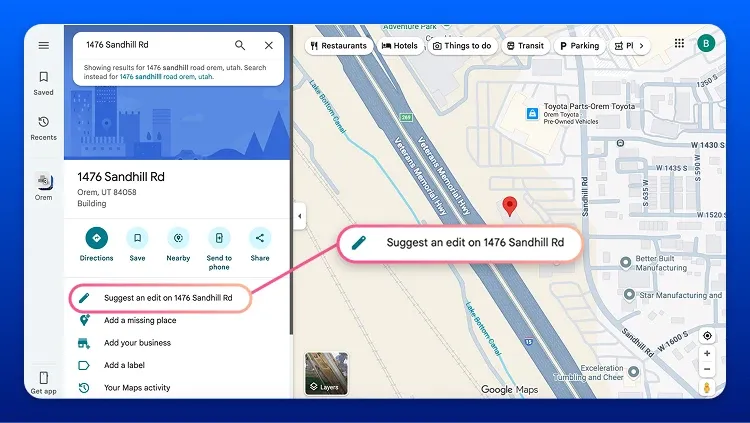
- Search for the address you wish to suggest an edit for in the search bar.
- Click “Suggest and edit on [your address]”.
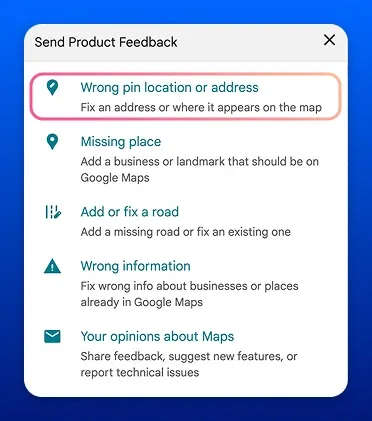
- A product feedback box will appear. Click “Wrong pin location or address”.
- A new box will appear, prompting you to fix the address. You can see we attempted to change our ZIP Code to “AWESOME”.
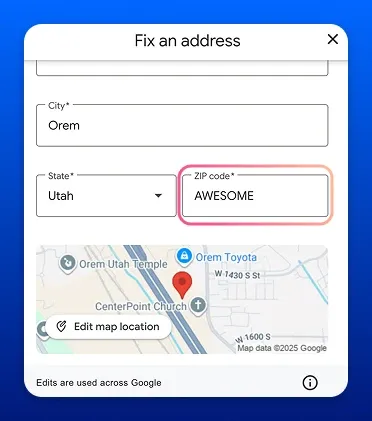
- You can also edit the pin on the satellite view itself by clicking “Edit map location,” which will show another box where you can drag and drop the pin in a different location on the map.
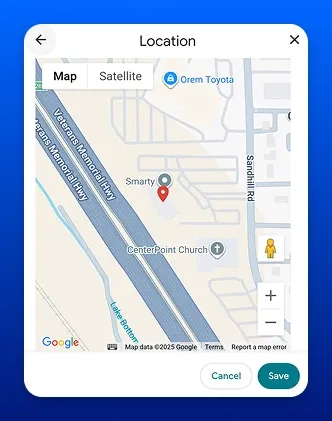
- If you moved the pin, click “Save” before going back to the “Fix an address” box, and then click “Submit”.
**Note: If you’re trying to add an address for a road that isn’t yet on the map (new construction, we’re looking at you), you’ll just need to add the road first.
Android: change an address in Google Maps
Here are the steps you should take to fix a wrong address or pin location in Google Maps from your Android device:
- Ensure you’re signed into your Google account, then open the Google Maps app.
- Search for the address you’d like to submit a fix/change for.
- Scroll past the images and navigation instructions to the “About” section. There, you will click a pencil and the word “Edit”.
- Select “Fix an address”.
- Maps will prompt you to move the pin to the right location. If it’s already correctly over the structure or place, you can skip this step by tapping “Next”.
- Parsed address fields will display. You can update the information there, change a street address, or adjust the pin again.
- Tap “Submit”.
**Note: If you’re trying to add an address for a road that isn’t yet on the map (new construction, we’re looking at you), you’ll just need to add the road first.
iOS: Change an address in Google Maps
Here are the steps you should take to fix a wrong address or pin location in Google Maps from your iOS device:
- Ensure you’re signed into your Google account, then open the Google Maps app.
- Search for the address you’re hoping to edit.
- Scroll the toolbar with directions, call, website, etc., to the right until you see "edit".
- Select the address line.
- Drag and drop the map so that the center of the pin lands directly over the address you’re hoping to edit, preferably at the center of the structure or building.
- Enter the address information that Google prompts you to add.
- Tap “Submit”.
How to add an address to Google Maps
Sometimes, Google hasn’t added your new address to Google Maps, even though you’ve been living or working there for weeks. Here’s how to add a new address to Google Maps and make sure it gets picked up a little sooner, so your mail and deliveries don’t go on an unnecessary trip through the postal system. Below, we’ve included desktop-, Android-, and iOS-focused instructions to help you add a missing address to Google Maps.
Desktop: add an address to Google Maps
Here's how to add a new address to Google Maps from your desktop/laptop computer:
- Sign in to your Google account, then open Google Maps.
- Type the address you’d like to see added to Google Maps into the search bar.
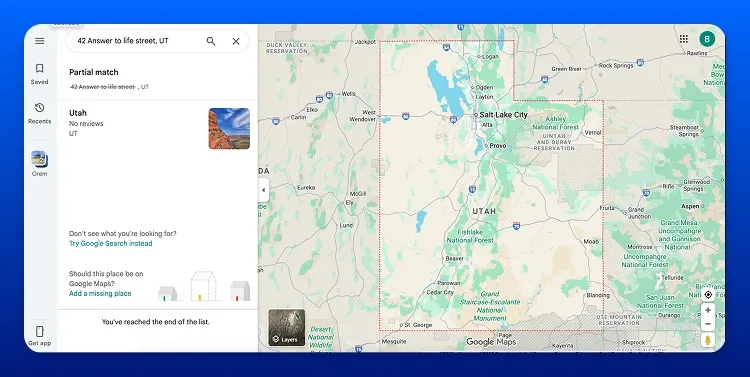
- When the address doesn’t populate (that’s why you’re here, right?), what will populate is an option to “Add a missing place” in the bottom left-hand corner of the screen. Click that!
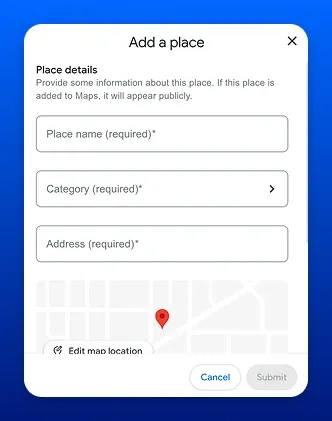
- Now, you can provide Google Maps with details and information about the place you’d like to see added. it’ll appear publicly.
- Before clicking submit, make sure your pin is properly placed over your location. Once all details have been filled in, click “Submit”.
Android: add an address to Google Maps
Here's how to add a new address to Google Maps from your Android device:
- Ensure you’re signed into your Google account, then open the Google Maps app.
- In the bottom right corner, tap on the encircled plus sign labeled “Contribute”.
- Touch “Update address” to pull up the map.
- Shift the map so that the pin’s base is pointing to the center of the structure tied to the new address you’re suggesting in Google Maps.
- Tap “Submit”.
iOS: add an address to Google Maps
Here's how to add a new address to Google Maps from your Apple device:
- Ensure you’re signed into your Google account, then open the Google Maps app.
- Tap “Contribute” on the bottom toolbar.
- Next, click the icon titled “Add place” and fill out the required "Place details."
- Tap "Edit map location" and drag the map so that the bottom of the red pin is pointing to the center of the structure tied to the address you’re attempting to add to Google Maps.
- Enter any optional information you may have to help the request be approved more quickly.
- To submit, tap “Post”.
Add a missing place (only when it’s a “place,” not just an address)
Places differ from addresses in that they can be landmarks, public places, or local businesses.
While places CAN have an address attached to them (Smarty is a business that has an address), they can also just be, well, a place (the park down the street doesn’t need to receive mail or shipments, but we still like to know that people can navigate to it if they want.)
Below, you’ll find instructions for desktop, Android, and iOS to add a missing place to Google Maps. Scroll to what speaks to you.
Desktop: add a missing place to Google Maps
Here’s how to add a place to Google Maps from your desktop/laptop computer:
- Sign in to your Google account, then open Google Maps.
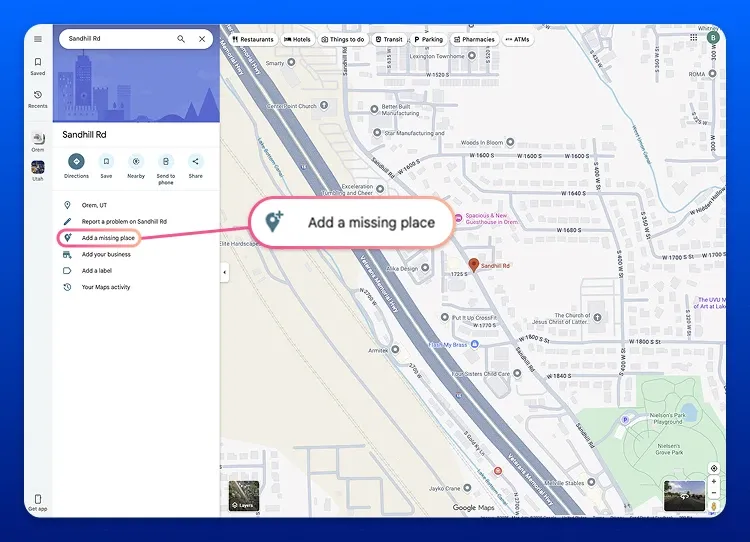
- Since there’s no address to search for, we recommend searching for the smallest area you can that’s near your place of interest.
- Ex. If you’re trying to add a park, look at the street signs near the location you’re hoping to add to get Google to populate the map as close as possible. You can then relocate the map marker to the correct spot a little more easily than zooming in from a city level.
- Ex. If you’re trying to add a park, look at the street signs near the location you’re hoping to add to get Google to populate the map as close as possible. You can then relocate the map marker to the correct spot a little more easily than zooming in from a city level.
- Click, “Add a missing place”.
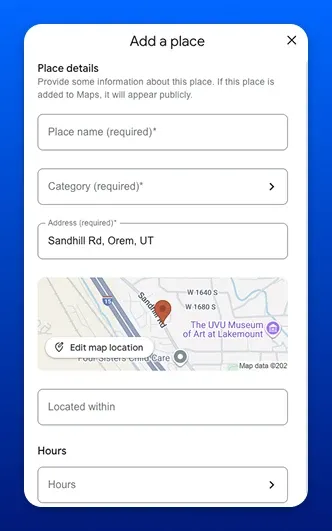
- A pop-up box will appear, prompting you to add a place name. Next, select the category (Food & drink, Shopping, Services, Hotels & lodging, Outdoors & recreation, Religion, Office & industrial, Residential, Education, or you can search for alternate categories like Park, Loan agency, or whatever you need). An Address is required. However, if you don’t have an exact address, you can put the nearest street name. You also have optional sections to fill out, such as “Located within,” “Hours,” or “Contact,” as well as a place to attach a website or photos related to this place.
**Note: Remember that the things you post will appear publicly with your profile name, picture, or link to your Google profile. Only post things you’re ready for the internet to see. Please ensure that you follow Google’s guidelines when posting to increase your chances of success and have your post approved. - Before clicking submit, ensure that the pin is directly over the new place you’re attempting to add.
- When finished, click “Submit”.
**Note: For new residential streets, the “fix/add address” flow is usually a better fit.
Android: add a missing place to Google Maps
Here’s how to add a place to Google Maps from your Android device:
- Sign in to your Google account, then open the Google Maps app.
- In the bottom right corner of your screen, you’ll see a “Contribute” tab with an encircled plus sign. Click that.
- Next, select the first option that populates, “Add place”.
- You’ll be prompted to fill out additional fields (Place name, Category, Address, and edit the pin on the map location).
- There are also additional options to add more details like phone numbers, hours, website details, or photos to help Google verify the place a little quicker.
- Tap “Submit”.
iOS: add a missing place to Google Maps
Here’s how to add a place to Google Maps from your Apple device:
- Sign in to your Google account, then open the Google Maps app.
- Tap the "contribute" button on the toolbar at the bottom of your screen
- Tap “Update place”.
- Tap the existing location on the map you'd like to update..
- Enter the information Google Maps prompts you to fill out, ensuring the required fields are filled out.
- To submit, tap “Post”.
What should I do if my Google Maps address change isn’t reflected immediately?
Well, it likely won’t be an immediate process. The Google Maps website/app typically takes between 2-3 weeks to reject or accept an address edit on average.
Google Maps still has my address wrong
Google Maps doesn’t “validate” what you type—it tries to match it to the best candidate in its data. Maps parses your input, then selects the most likely result based on coverage and confidence.
When Google doesn’t have a precise rooftop-quality location for a street address, it may fall back to an approximation (for example, placing the point along a road segment). That’s why you can get routed close-but-wrong when nearby streets or naming patterns are similar.
Edits also go through a type of verification. Google allows public updates to addresses and pins, but changes can be reviewed and may not be published right away.
One important nuance: Google does offer an Address Validation API that parses components and standardizes addresses for mailing, but that’s separate from the consumer Google Maps editing workflow—so “looks right in Maps” isn’t the same thing as “validated for deliverability.”
Troubleshooting Google Maps delays
If it’s been over 3 weeks and your address is still in pending mode, there are a few things you can do to ensure it gets the attention it deserves:
- Confirm you edited the correct feature/pin, and that there are no duplicate addresses or pins for the same area
- Submit your complaint via the Local Guides Reddit thread here (some have found taking their concern to the public garners an escalated Google review, but only if the 3 weeks have already passed)
You can also try to resubmit the edit:
- Re-submit with clearer details
- GPS coordinates for the road
- The automated confirmation email you received
- The edit’s status in Google Maps under “Your contributions”
- A photo of the road sign showing the name, with geotagged coordinates (enable “High Accuracy” location and allow your camera app to use location services)
- Check again after a reasonable window of time has lapsed.
If your home address is still pending after multiple attempts, add stronger verification signals (photos of street number signage, geotagged context, official listings).
If this is affecting a work address for a business, try the Business Profile route in parallel, so you’re not stuck waiting on public edit verification alone.
Google Maps address changes or additions FAQ
How long does it take for an added address to appear on Google Maps?
Typically, between 2-3 weeks is the average expected time for an address to appear on Google Maps.
How to add a new construction address to Google Maps?
You can do this in the same way that you would add a regular address or place to Google Maps, but you may need to create a new road first. You can do that from your computer, Android device, or iOS device.
Is there a geocoding API as good as Google's?
Yes, and actually, it’s even better than Google’s geocoding API if you’re looking for only valid and accurate addresses. Smarty’s US Rooftop Geocoding API places the pin on the actual roof of the structure tied to an address. Rooftop actually means rooftop, here.
Conclusion
At the end of the day, Google Maps edits are a community-powered system trying to reconcile messy, real-world location data with automated confidence checks. You can absolutely get an address or pin corrected—but the fastest path is to submit an edit that’s already standardized, mailable, and tied to the best arrival point.
Validate the address first, confirm the entrance/rooftop location, then submit your change to Google Maps so you’re not asking Google to “figure it out,” you’re giving it something it can approve.
If you want to boost the odds your Google Maps edit gets approved, start with the right validation path:
- Validating one address right now? Use our single address tool to validate and standardize before submitting your edit.
- Fixing a list of addresses (routes, customers, properties, deliveries)? Use our Bulk Address Validation to clean them up in one go before submitting multiple changes.
- Need validation built into your workflow? Use our US Street API to programmatically validate and standardize addresses before edits, routing, or downstream systems ever see bad data.
Was this helpful?