
Key management walkthrough
Total lookup limit
Limit the total number of lookups a key can perform.
- Select "API Keys" from the sidebar menu.
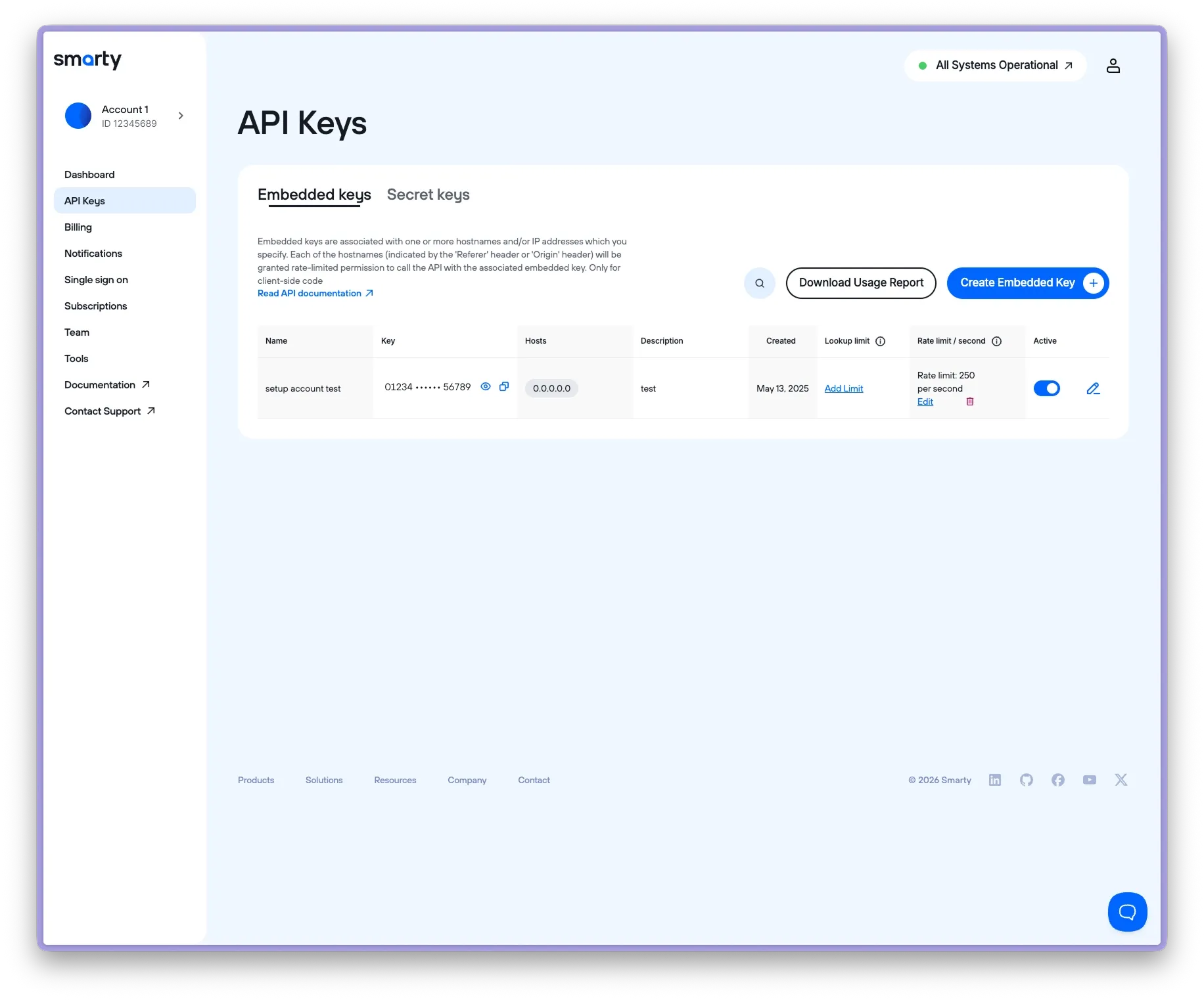
- Select "Add Limit" under “Lookup limit” for the key you'd like to add a lookup limit to.
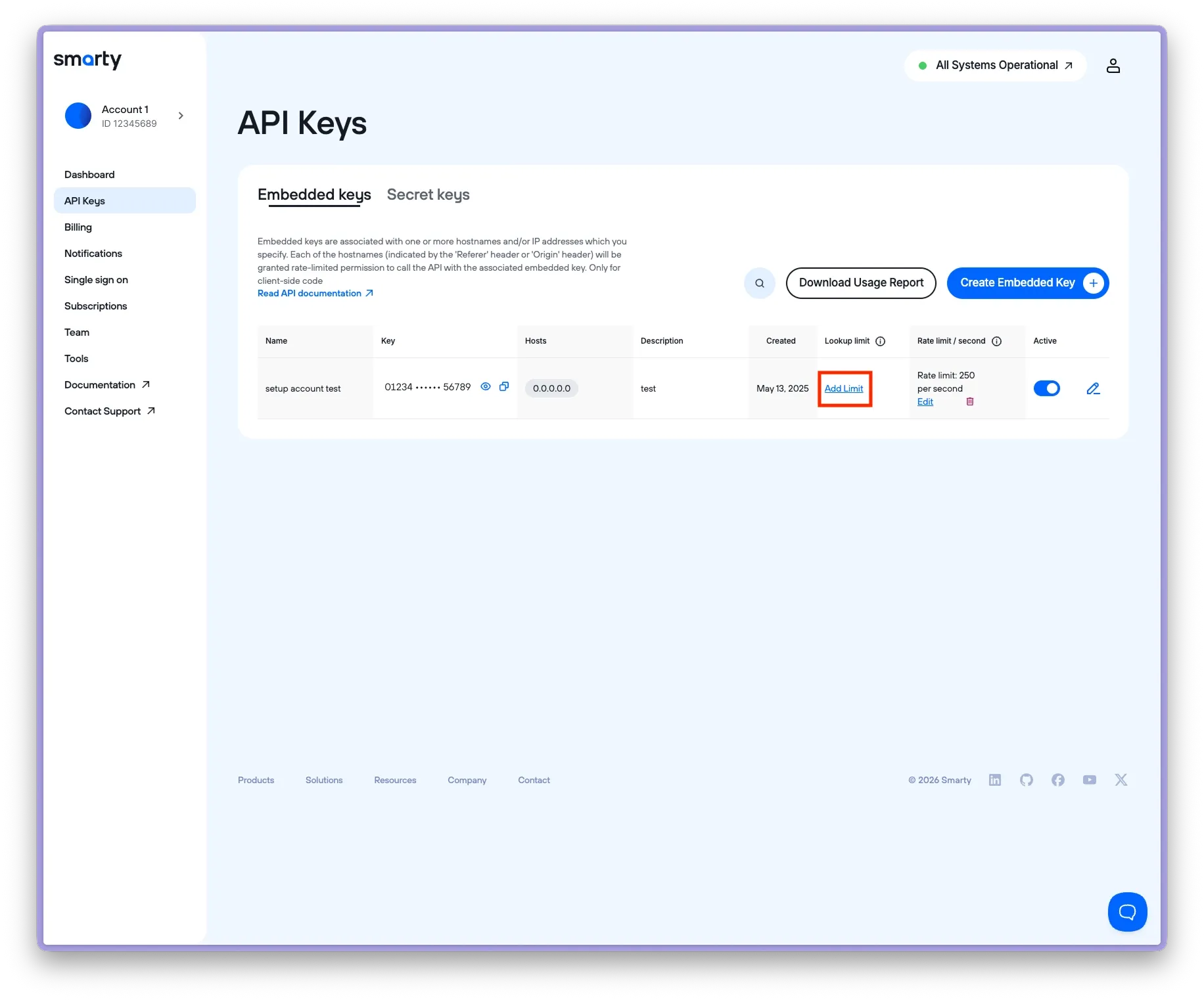
- In the sidebar, specify the lookup limit.
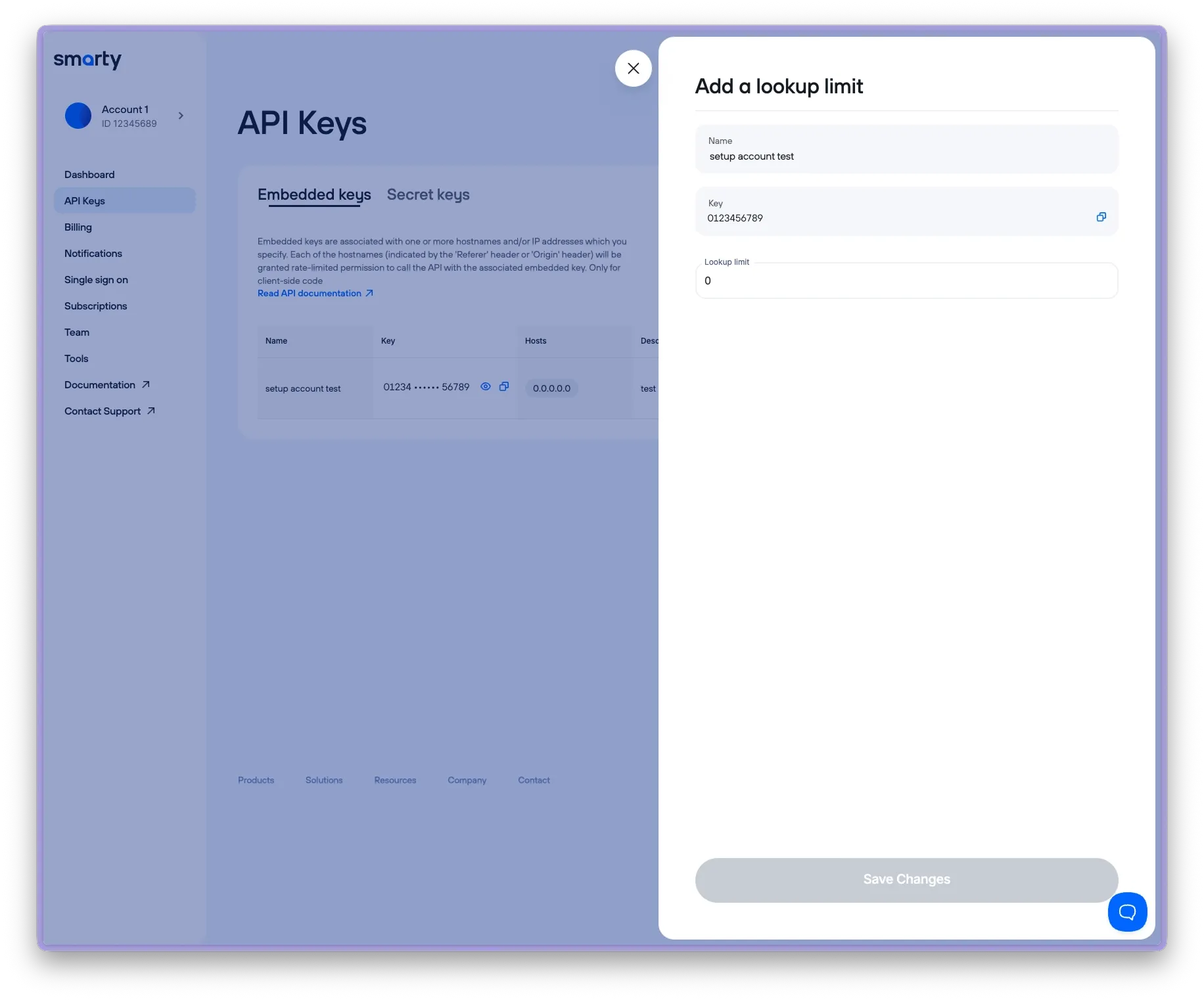
- Click "Save Changes."
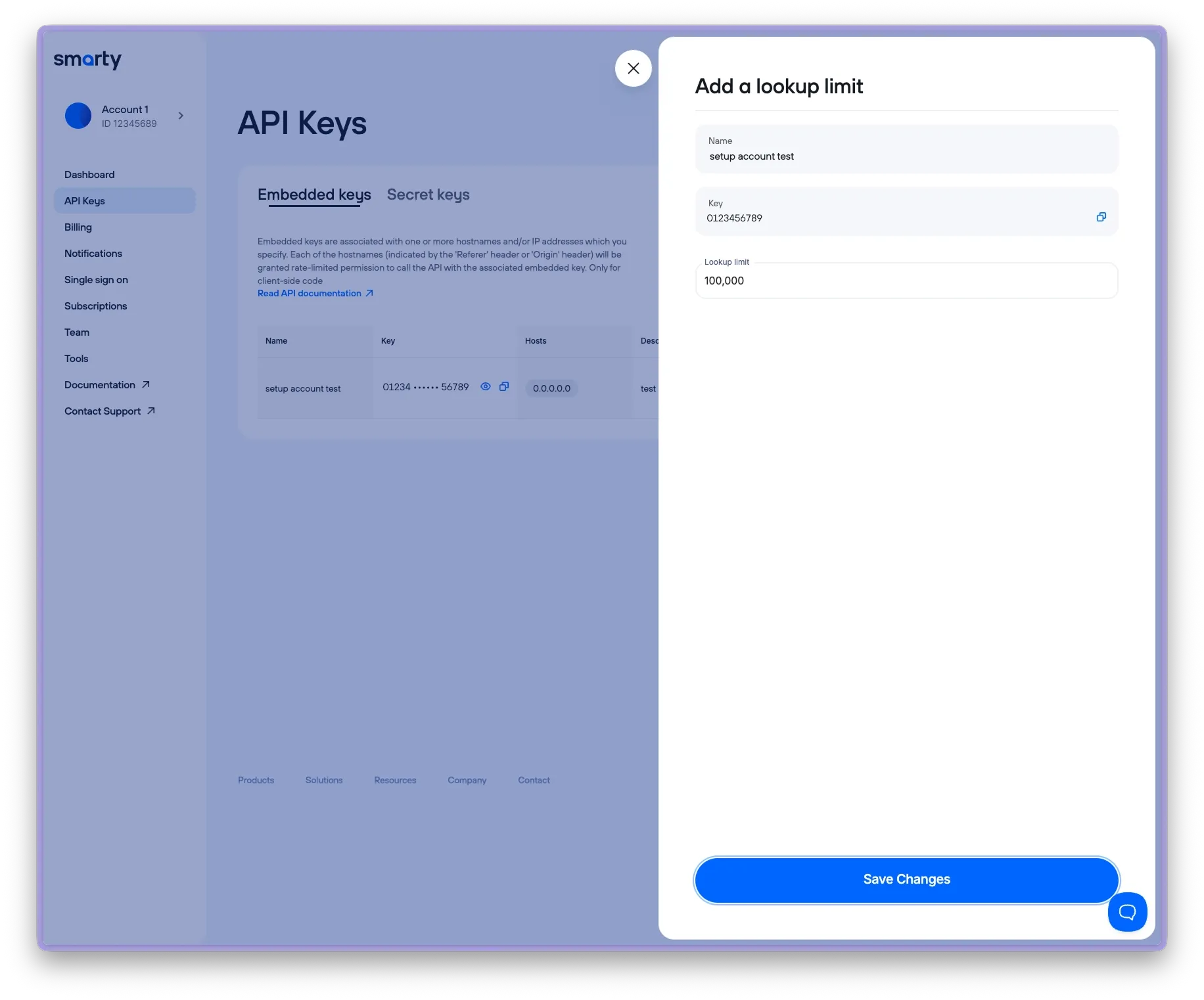
- You’ll now see the newly created rate limit, the lookups used, and the remaining lookups next to your key.
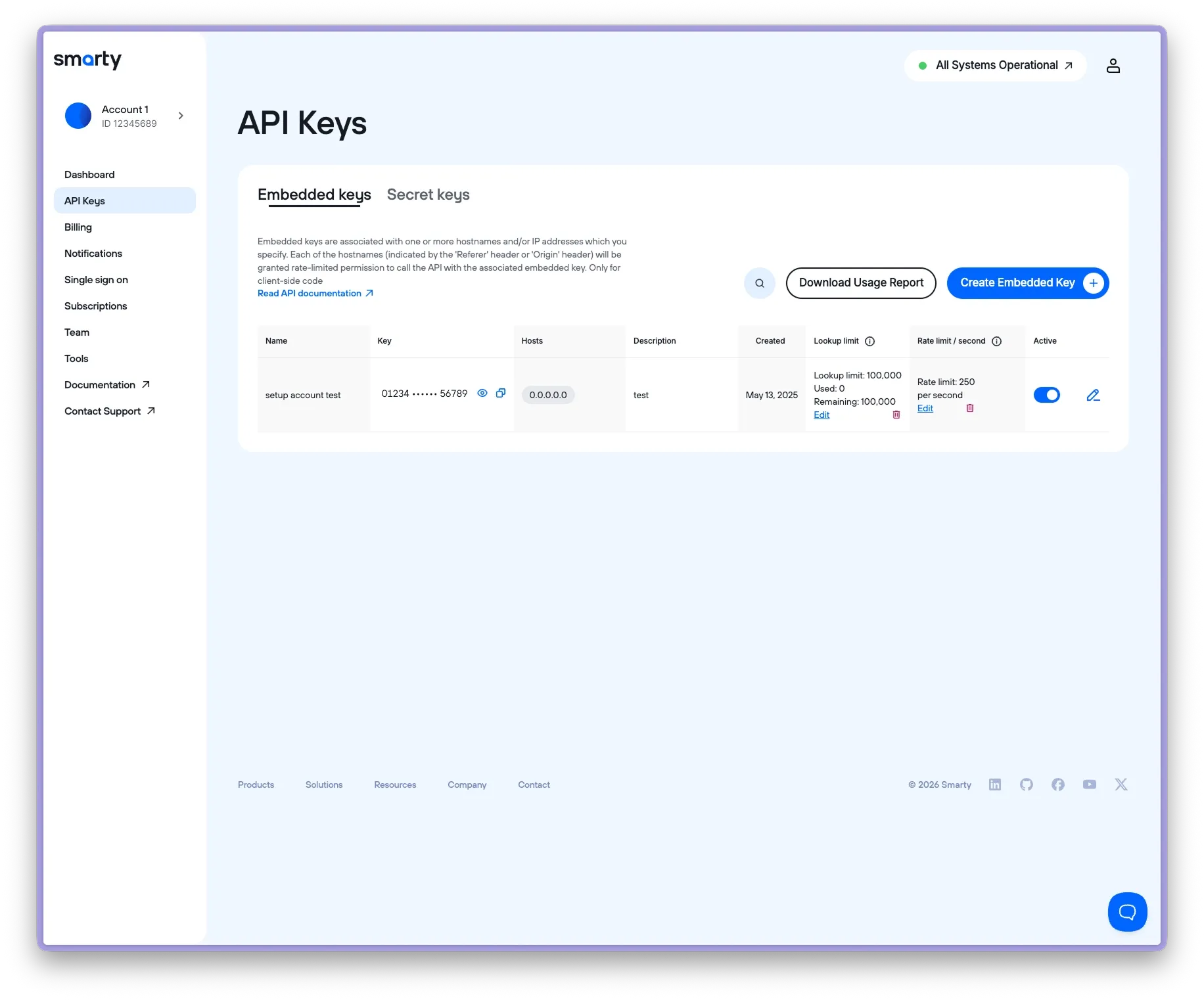
- If you need to adjust your limit, select "Edit."
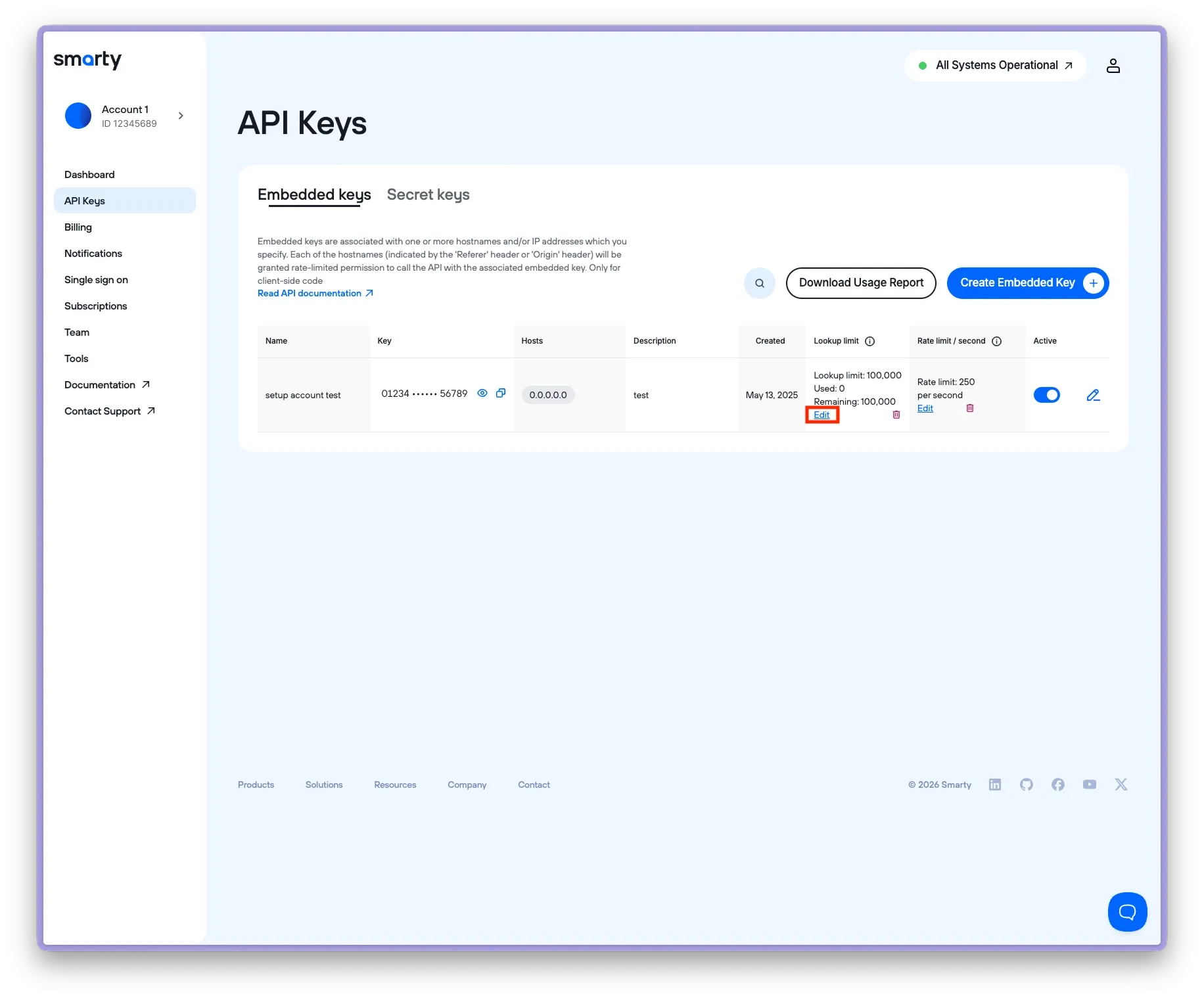
- From this menu, you can update the set limit, see the remaining lookups, reset the counter, or delete the limit entirely.
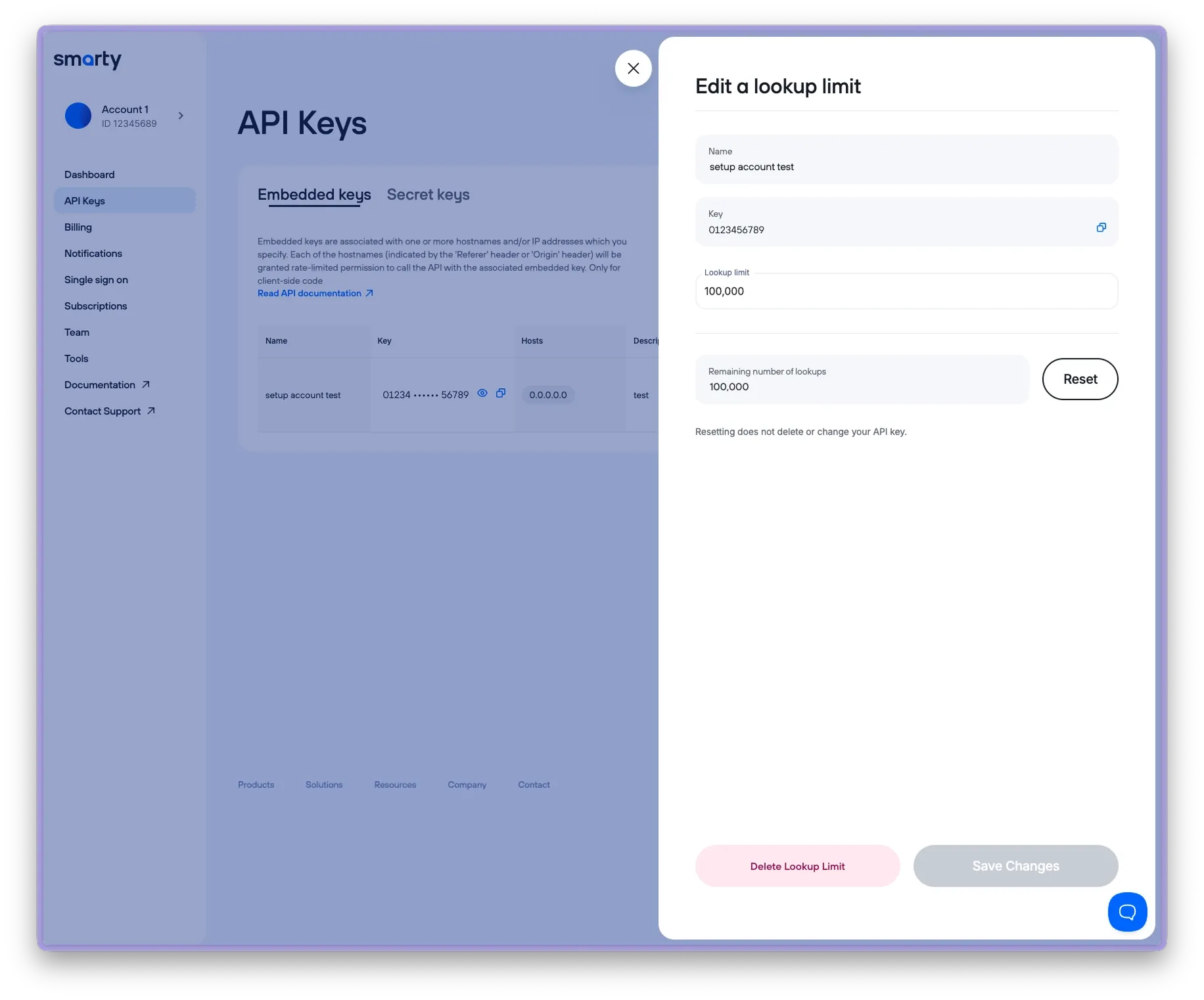
- If you want to download your usage report, select "Download Usage Report."
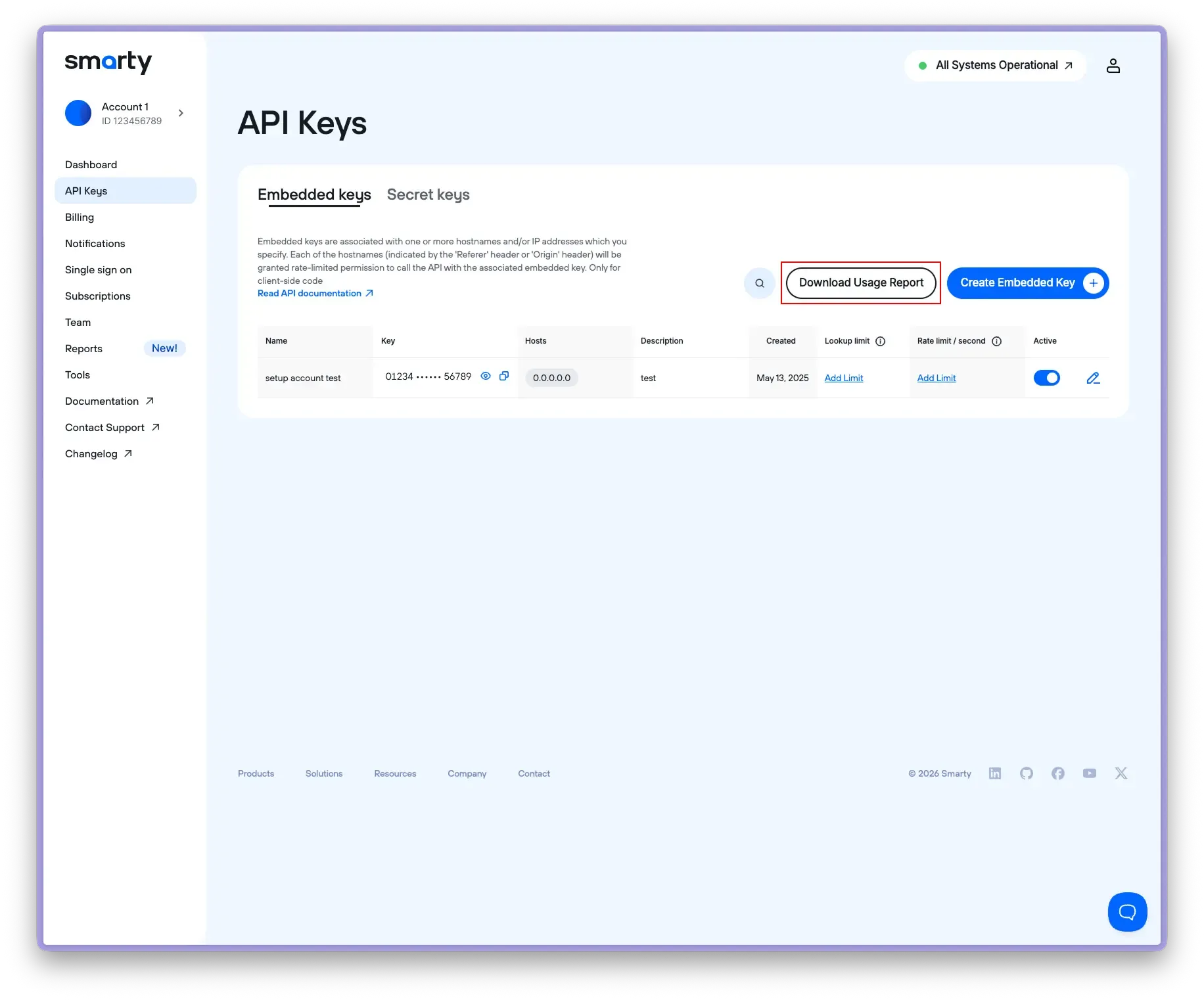
- Select your usage report options (All keys or individual keys, time frame, etc.)
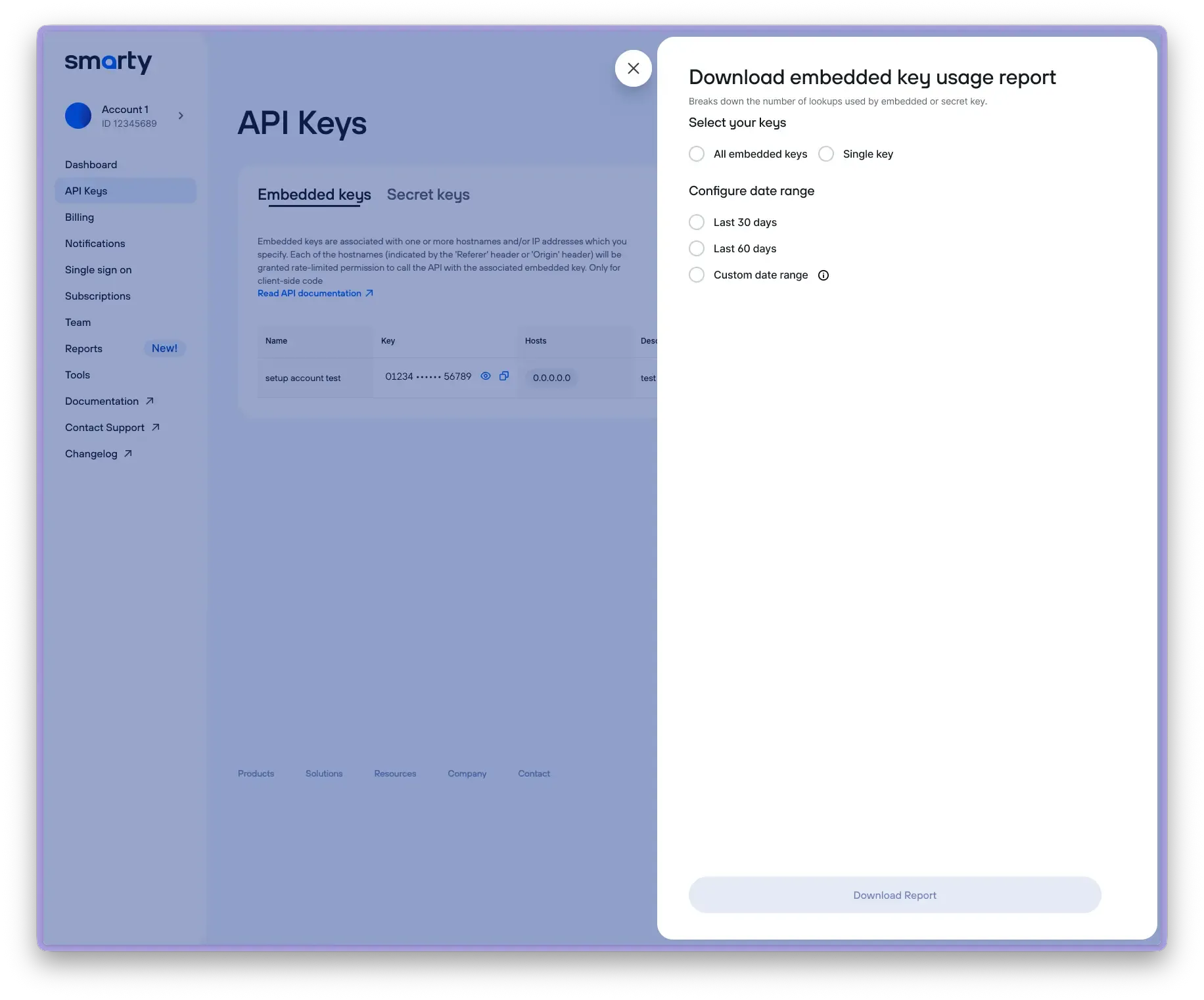
- Click "Download Report."
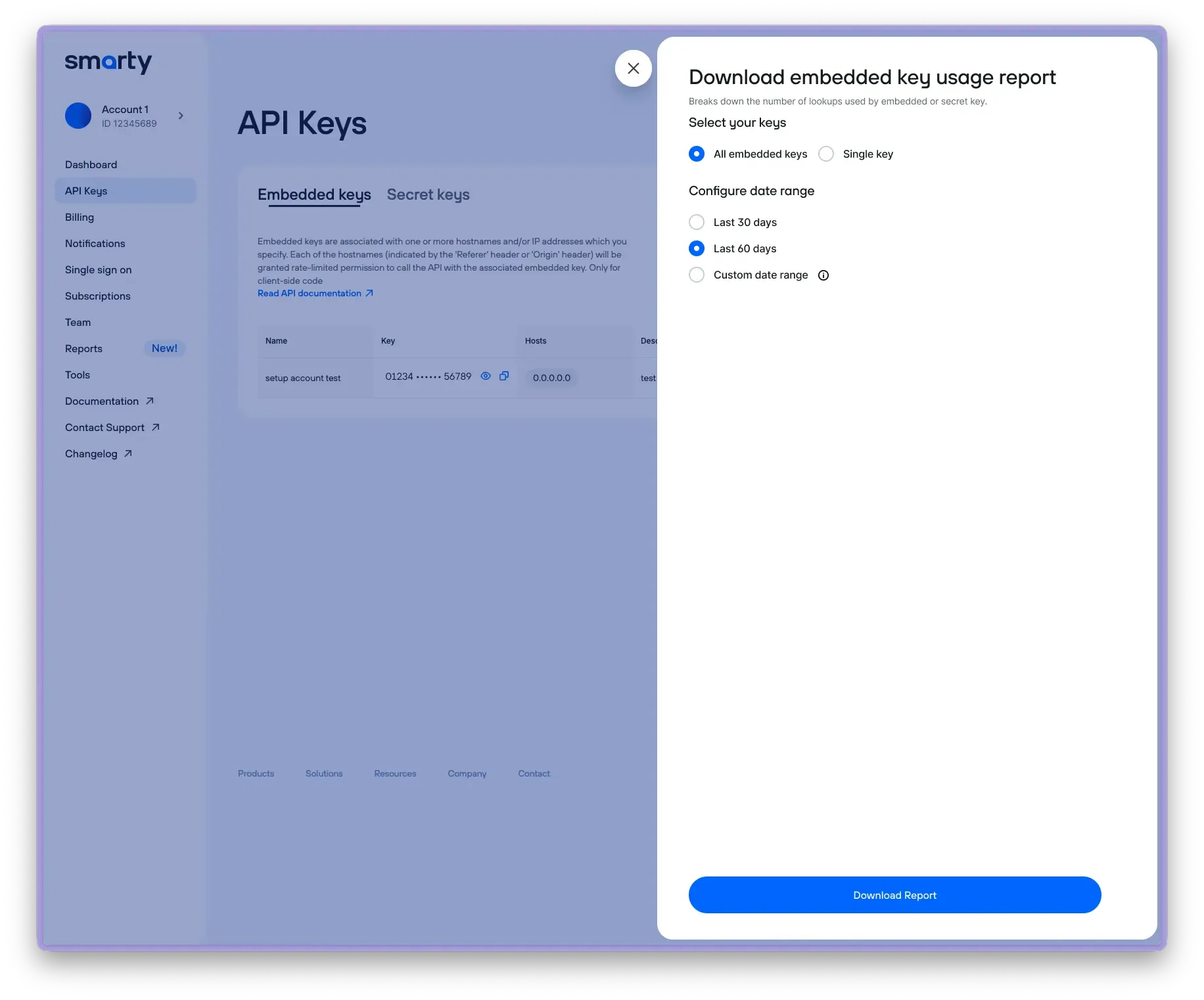
That's it! You'll now have a usage report CSV wherever you downloaded it!
Rate limit
Limit the number of lookups a key can make per second.
- Select "API Keys" from the sidebar menu.
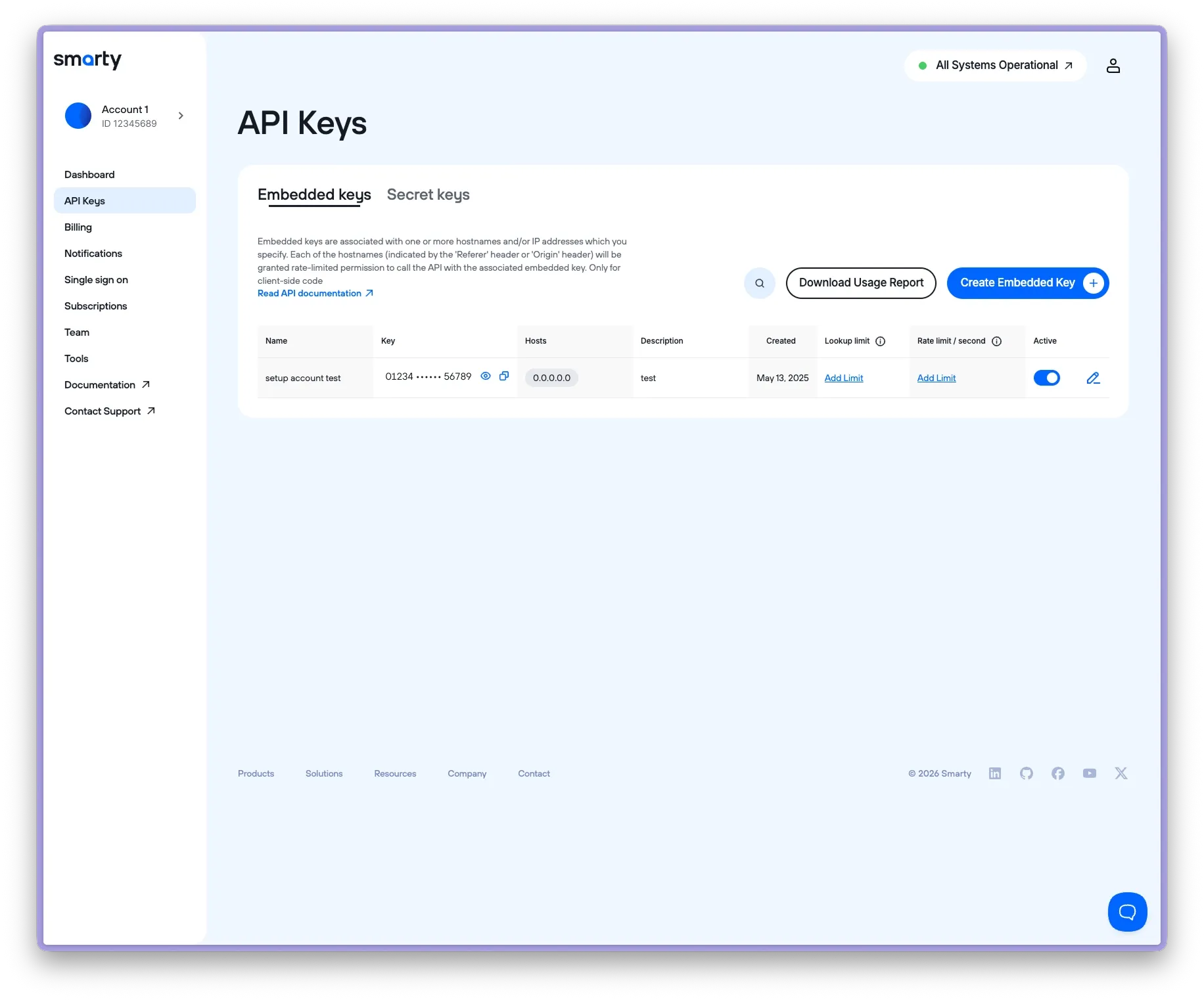
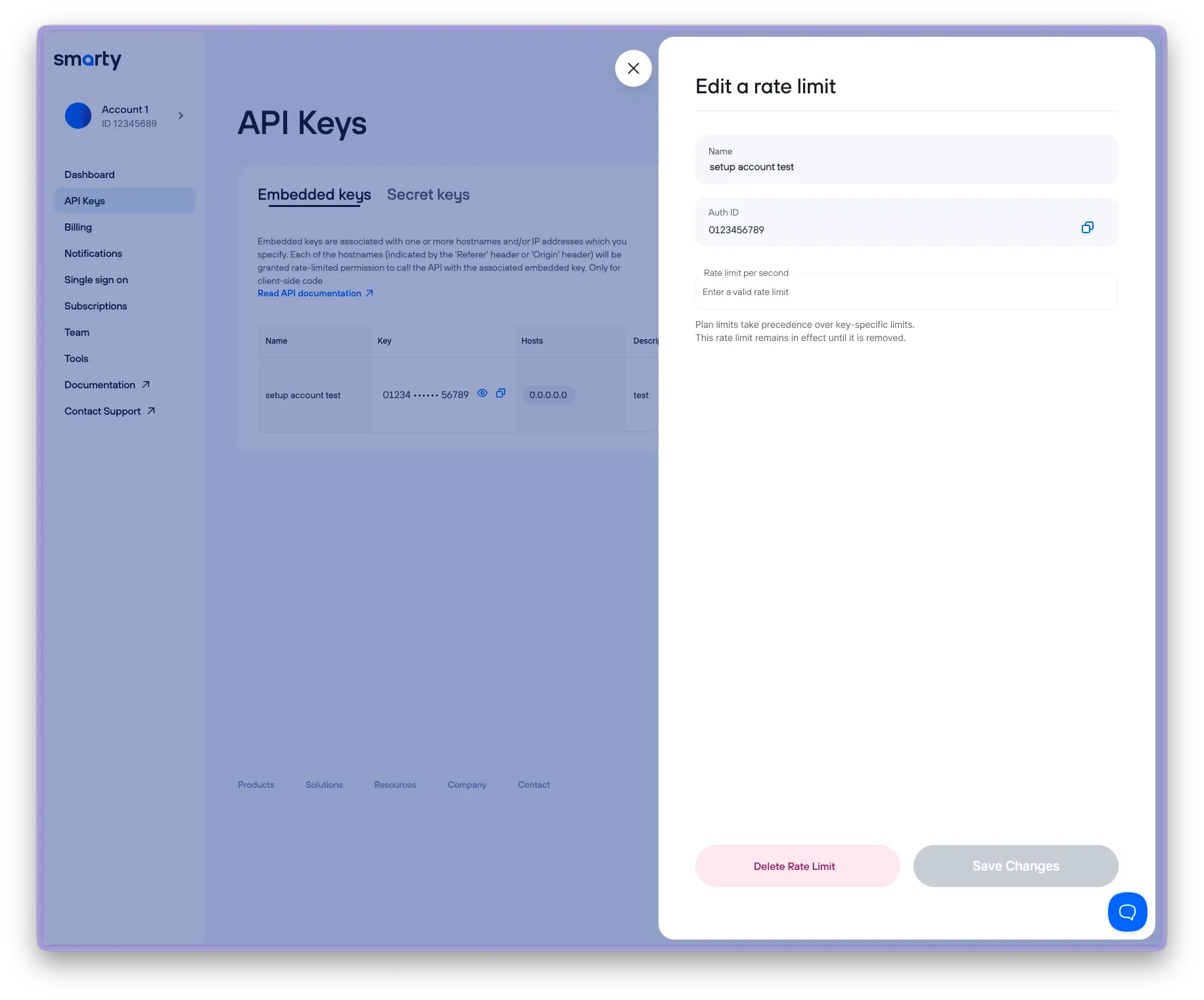
- Select "Add Limit" under “Rate limit / second” for the key you'd like to add a rate limit to.
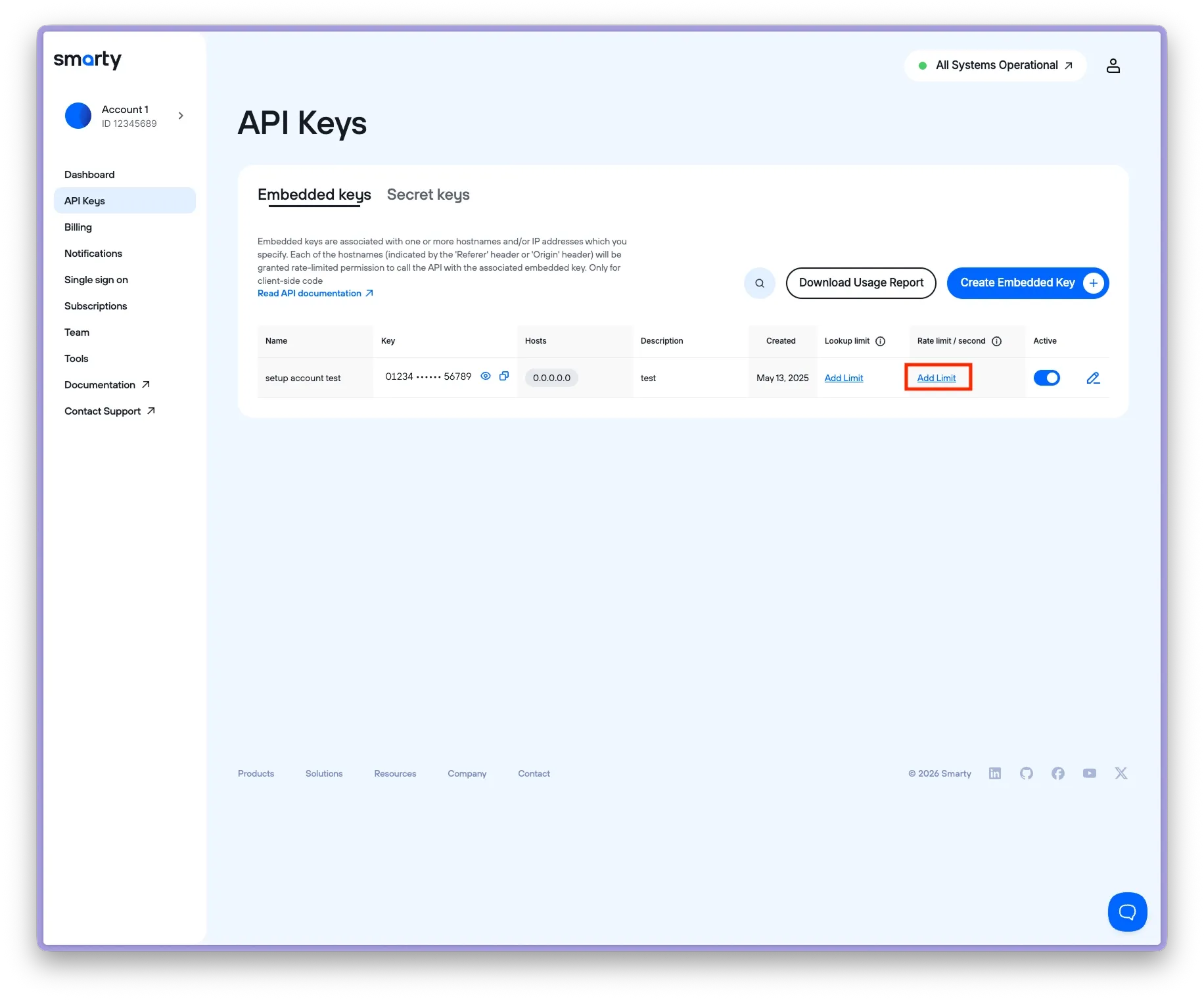
- In the sidebar, specify the rate limit.
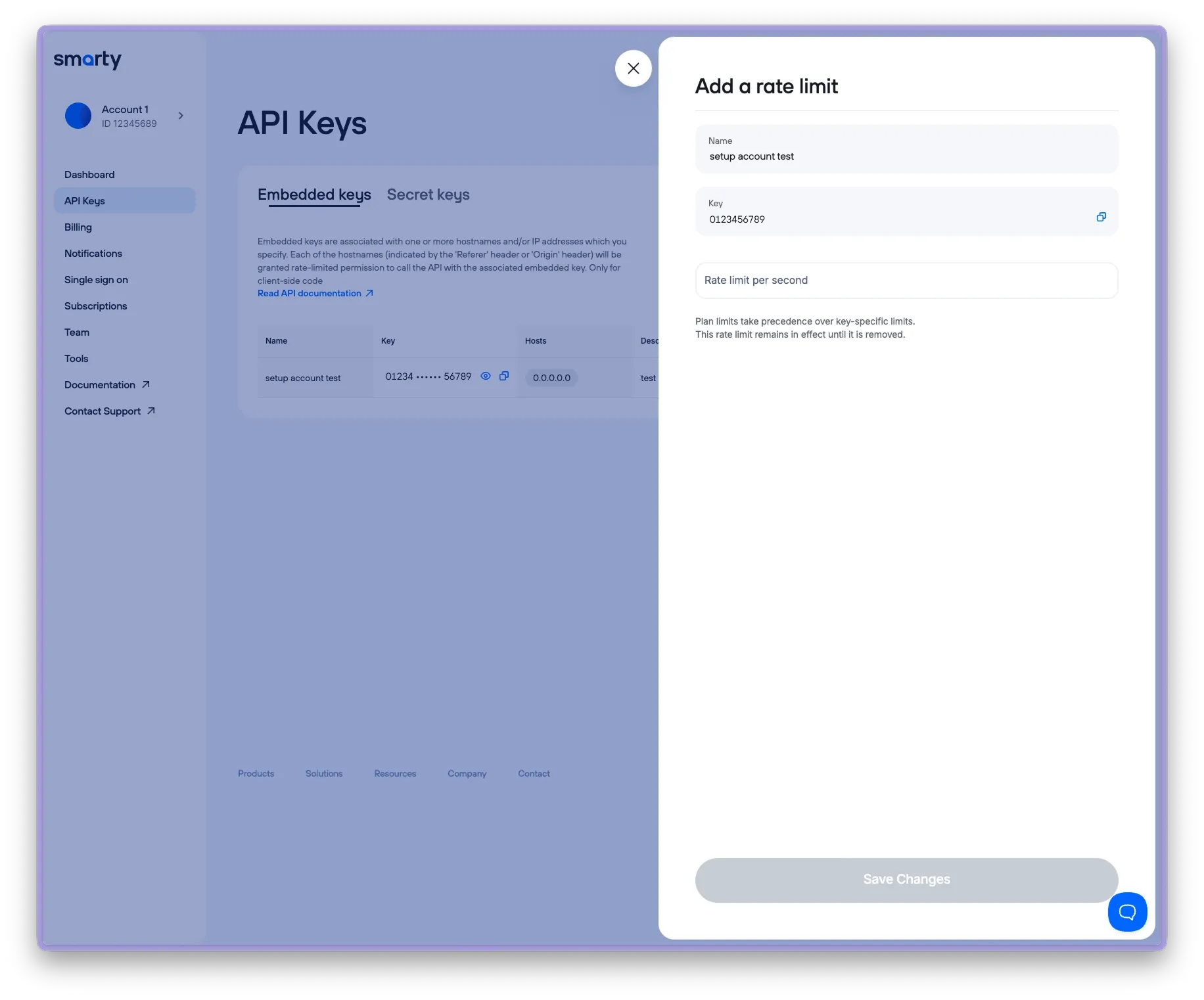
- Click "Save Changes."
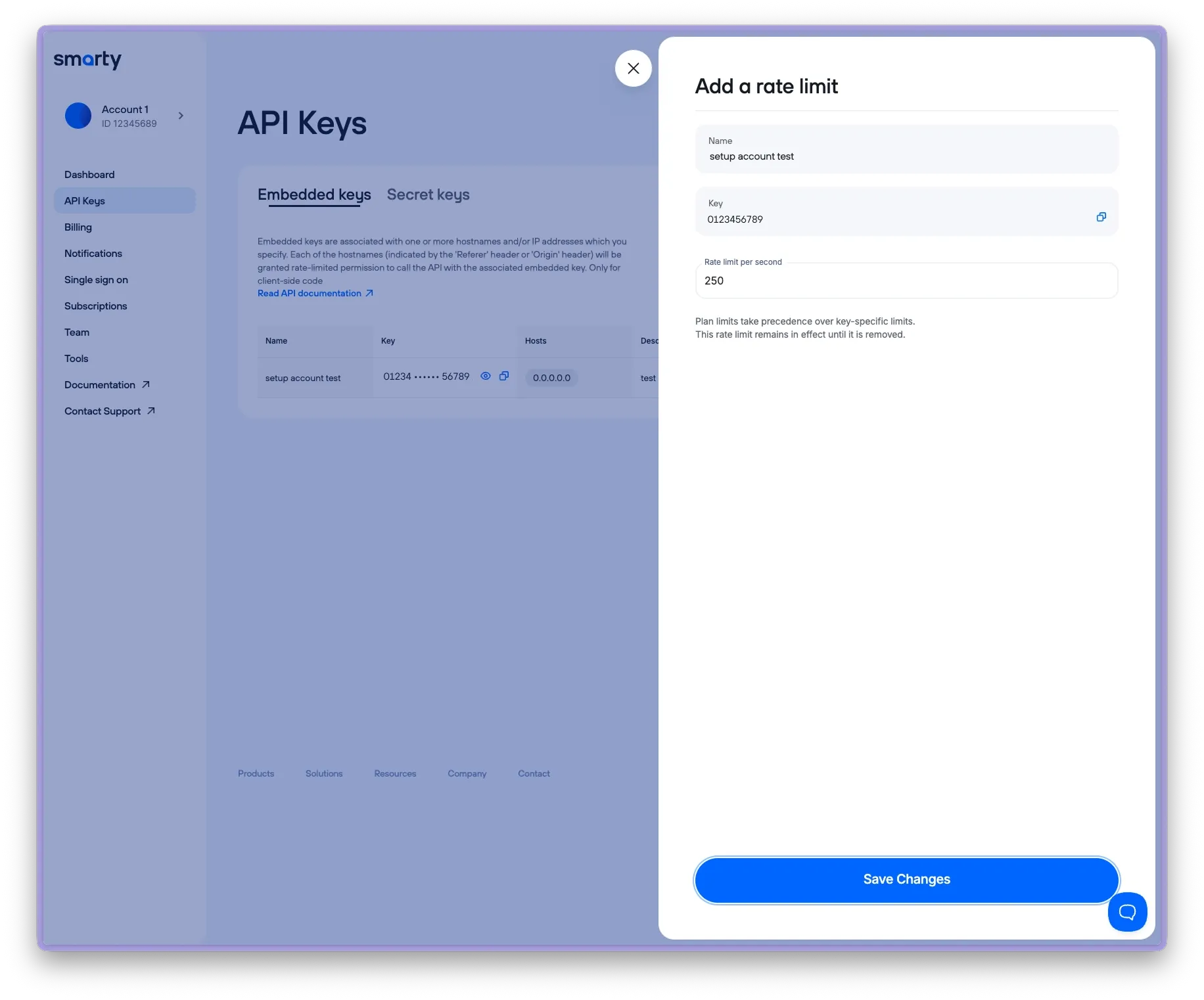
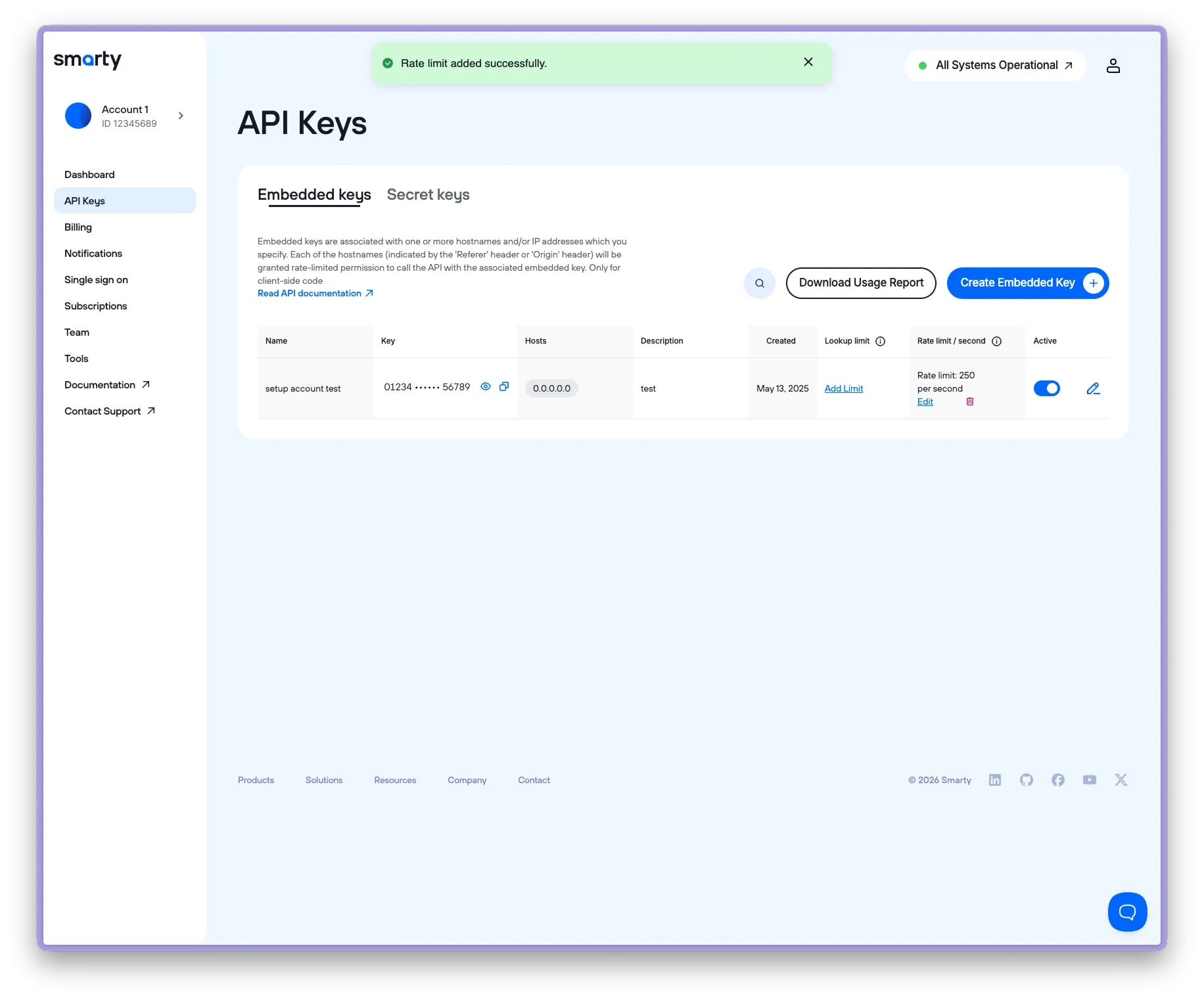
- You’ll now see the newly created per-second rate limit next to your key.
- If you need to adjust your limit, select "Edit."
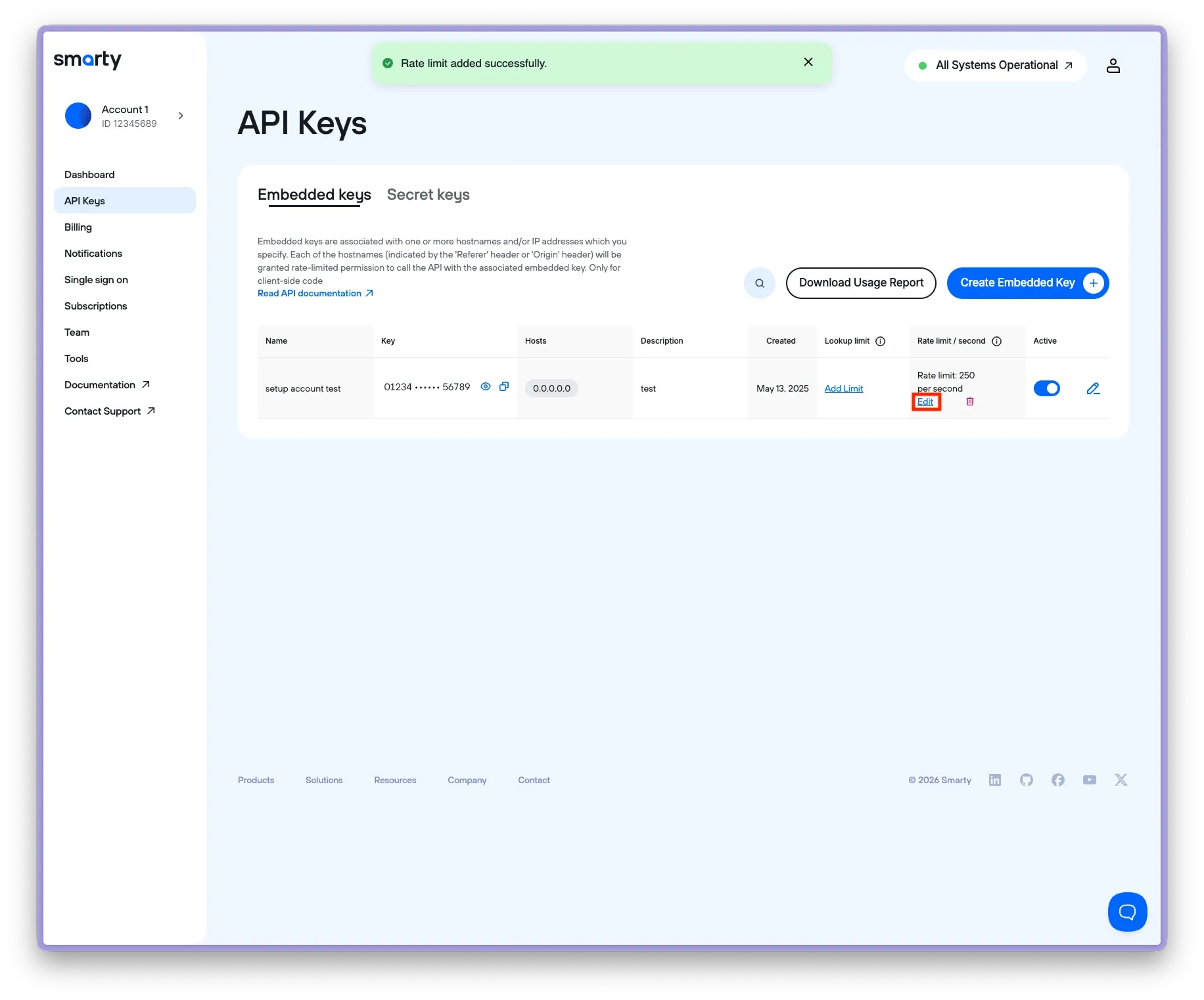
- From this menu, you can update the set limit.
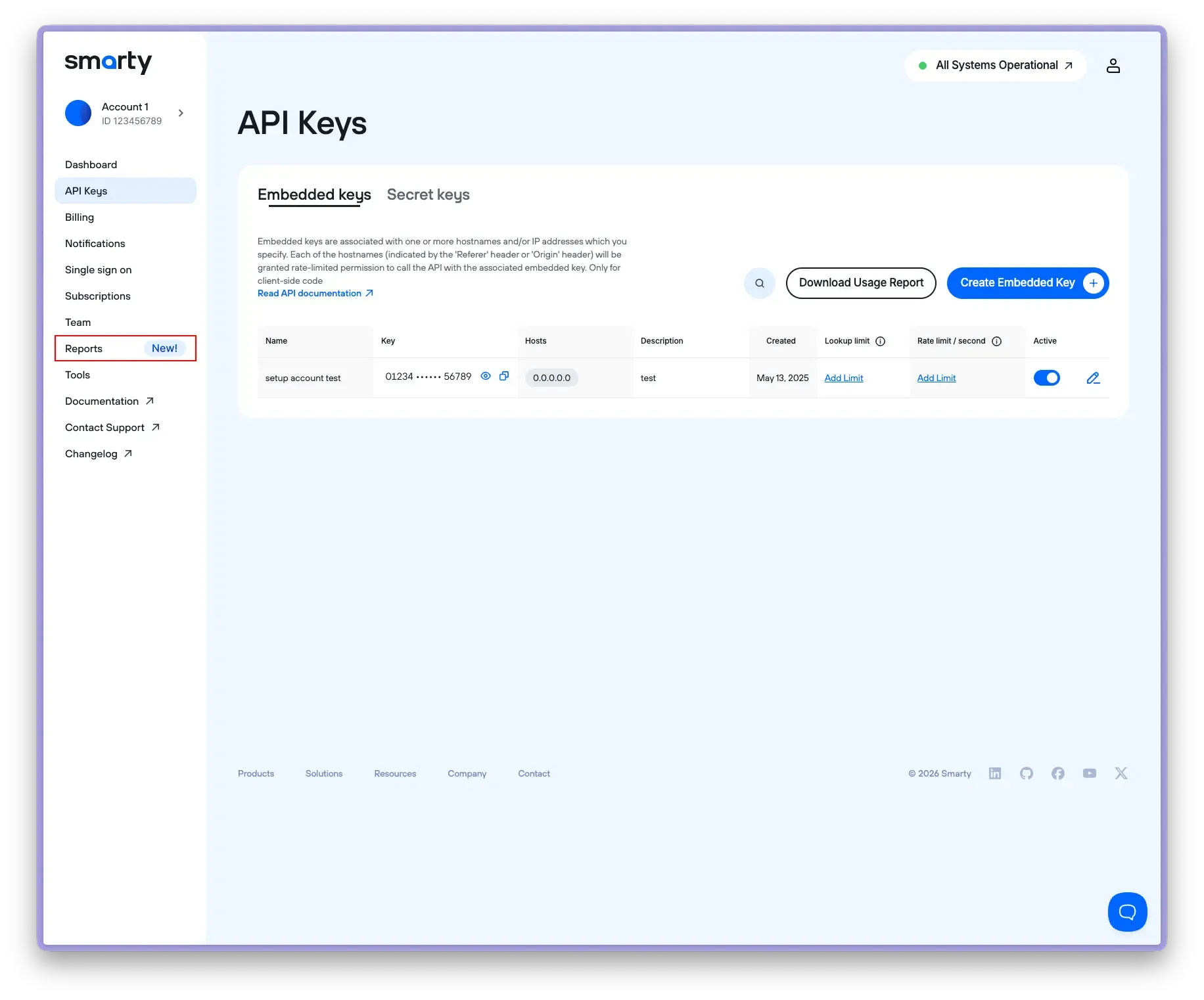
- If you want to download your rate limit report, select "Reports" from the sidebar.
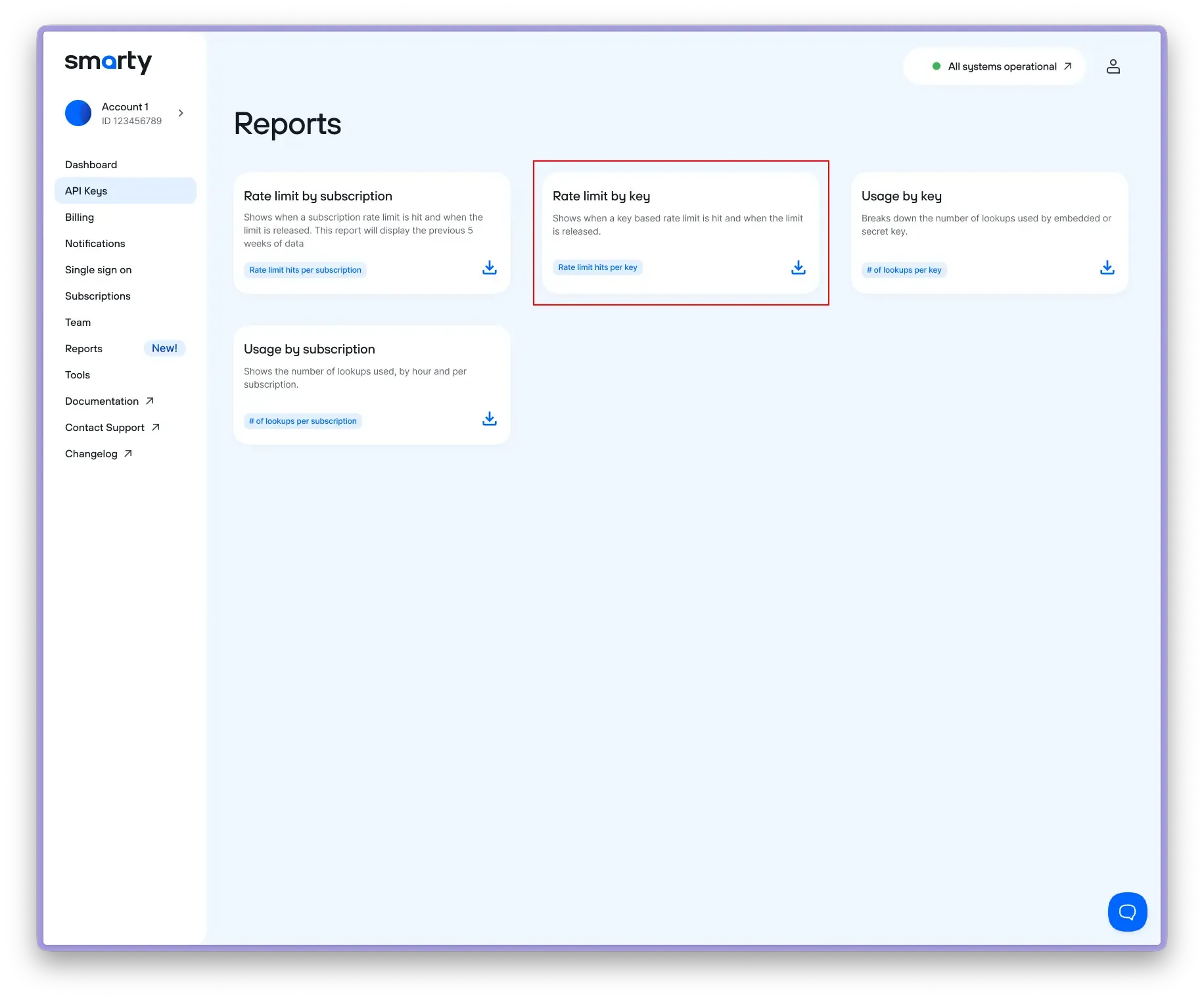
- Select the “Rate limit by key” report.
- Select your rate limit report options (All keys or individual keys, time frame, etc.)
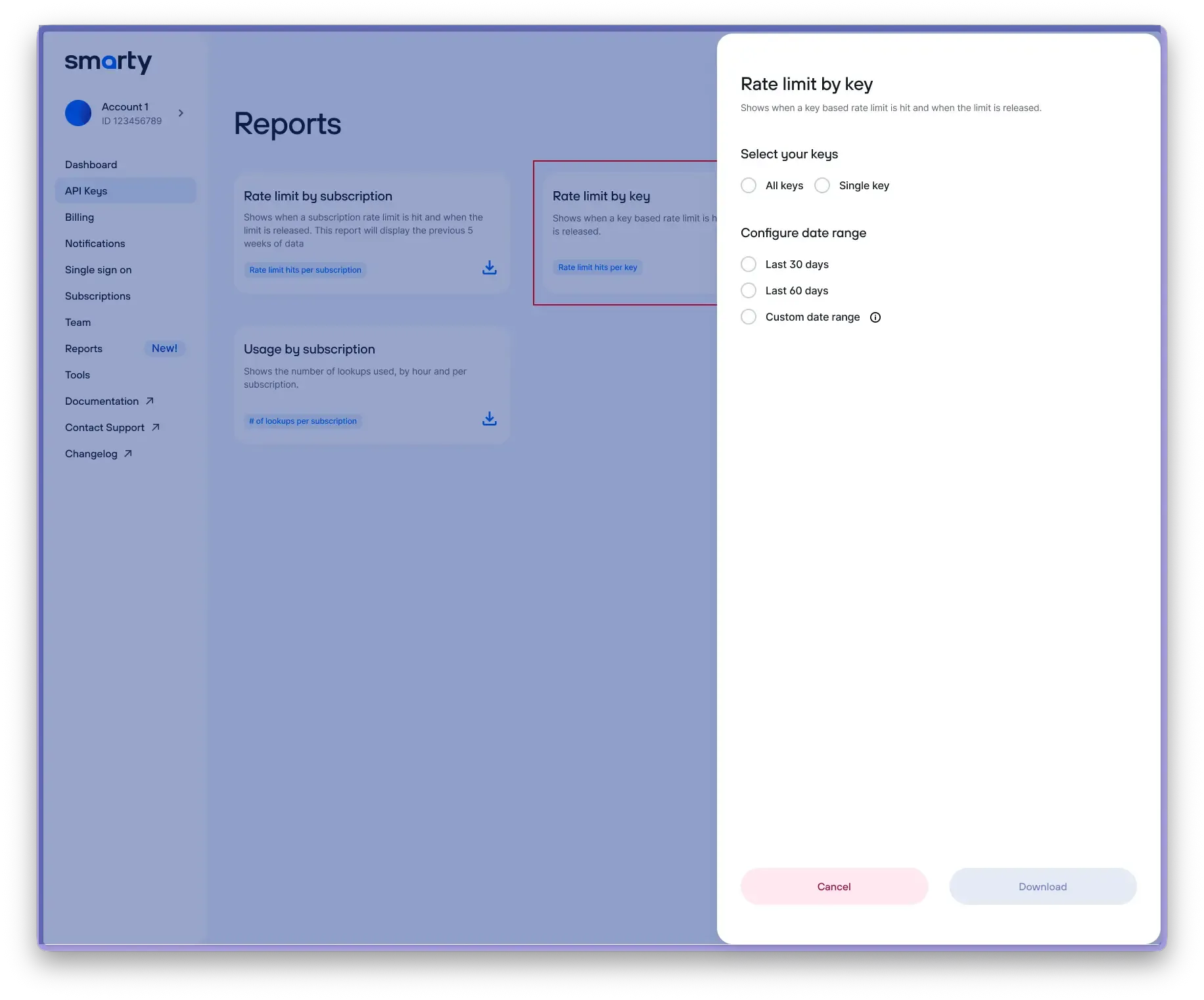
- Click "Download Report."
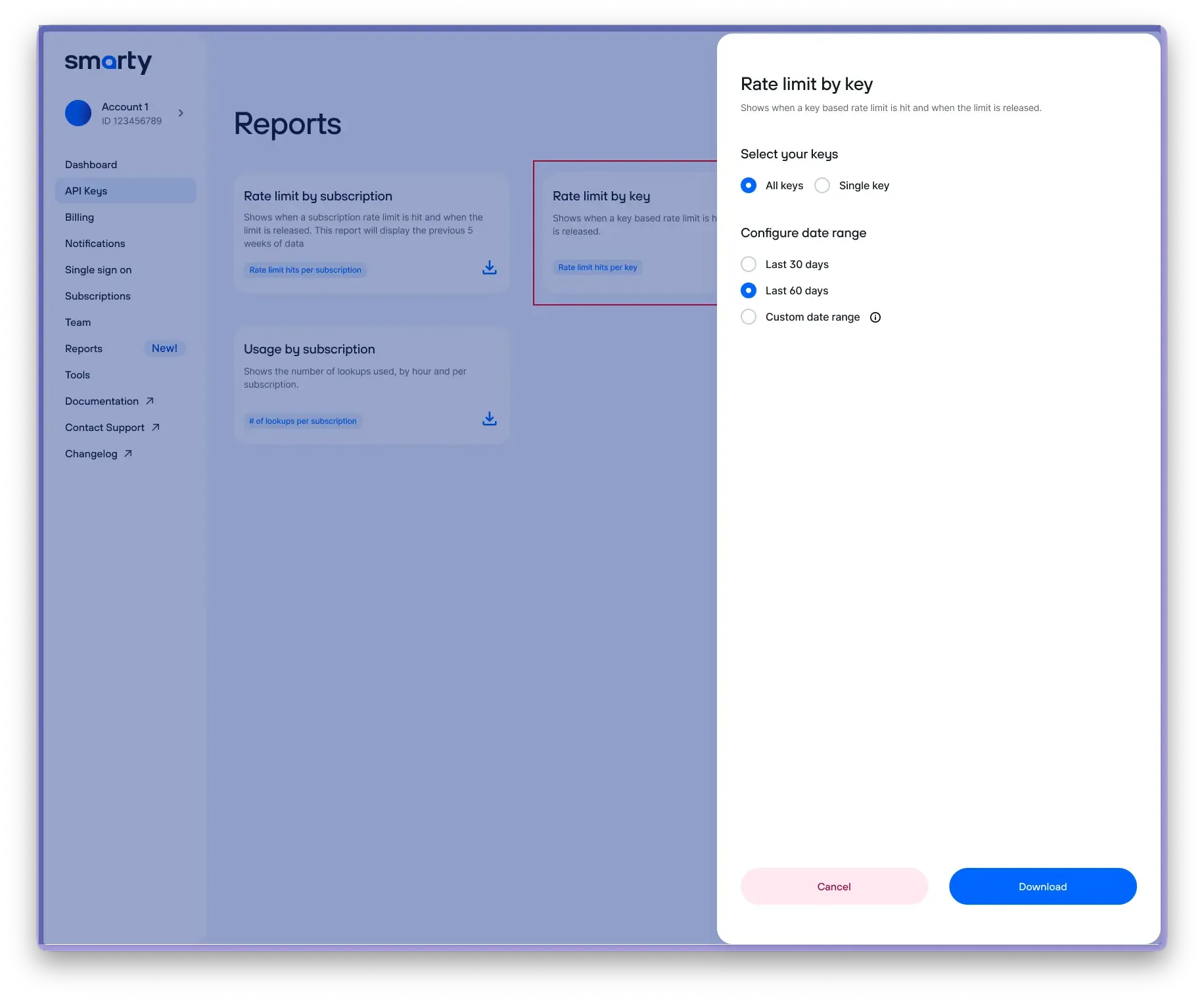
That’s it! You’ll now have a usage report CSV wherever you downloaded it!
Note: Limits added to keys are hard limits. Once they’re met, you can’t run another successful lookup until the rate limit expires or a lookup limit is reset or removed. If you try to run a lookup after you’ve met your limit, the API will return a 429 error.
If you’ve reached a 429 error due to hitting a hard limit but would like to make an exception for more, you only need to change your lookup limit to include the new number of lookups you’d like to allow. Then, repeat the previously failed lookup request.
Contact support or visit the FAQ if you have any questions or concerns, and you’ll be connected with a real and unscripted human who is pumped to help ya.
Was this helpful?