
Zapier integration
The Smarty integration for address verification in Zapier validates, verifies, and enriches US and international addresses inside any automated workflow (a "Zap"). Connect your Smarty account once, then drop a Smarty step into any Zap to clean address data as it flows between thousands of apps — CRMs, spreadsheets, forms, ecommerce platforms, and more.
Getting started
Install the integration from the Smarty app on Zapier, then add a Smarty step to any Zap.
To validate US addresses, you will need an active Smarty US Address Verification or US Rooftop Geocoding license. International verification requires an International Address Verification license, and address enrichment requires an active US Enrichment license for the dataset you want to use.
Not currently a Smarty customer? Don’t worry. You can start a free trial to test it out for free for 42 days.
Connect your Smarty account
The integration uses a one-click sign-in — there are no API keys to copy or paste.
- In the Zap editor, add a Smarty action and click Sign in (or connect from My Apps → Add connection → Smarty).
- A Smarty sign-in window opens. Sign in to your Smarty.com account and click Authorize to grant Zapier access.
- Zapier returns to the editor with your connected account. The connection is labeled with your account name so you can tell multiple connections apart.
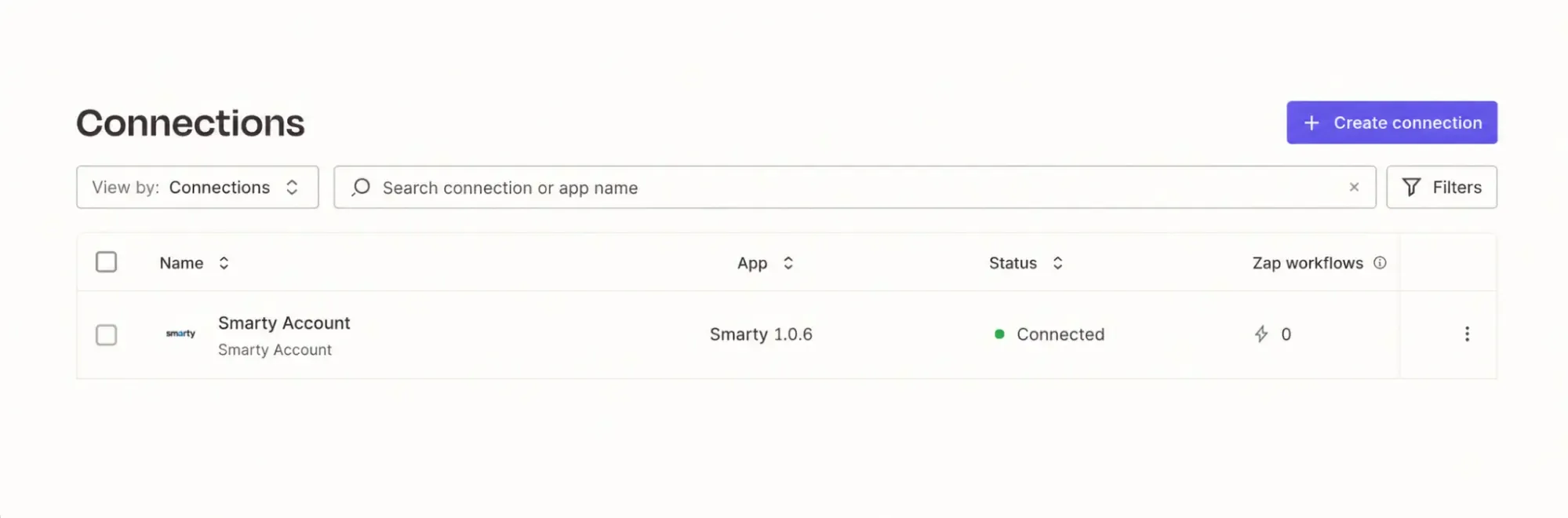
Your connected account's secret keys, subscriptions, and licenses are read automatically. The first active secret key is used by default; you can choose a different one on any step (see Choosing a secret key below).
Available actions
| Action | Type | What it does |
|---|---|---|
| Validate US street addresses (batch) | Create | Validates up to 100 US addresses in a single request. |
| Enrich a US address | Search | Appends property, geo-reference, secondary, or business data to a US address. |
| Validate a US street address | Search | Appends property, geo-reference, secondary, or business data to a US address. |
| Verify an international street address | Search | Verifies and standardizes a non-US street address. |
Validate US street addresses (batch)
Validates up to 100 US addresses in one step — ideal for Zaps that collect rows of addresses (from a spreadsheet, a batch of form submissions, or a CRM export) and need to verify them all at once. Each address uses the same fields as the single-address action and is supplied as a line item. See the US Street Address API reference.
Enrich a US address
Appends additional data to a US address. Choose the Dataset you want, then choose how to look up the address — by SmartyKey®, by address, or by Business ID (where supported). The available datasets are read from your connected account, so you'll only see the ones your licenses cover. For the available datasets and their fields, see the US Address Enrichment API reference.
Validate a US street address
Verifies a single US address and returns USPS-standardized components, ZIP+4, county, geocoordinates, time zone, and the SmartyKey identifier. For the full list of input and output fields, see the US Street Address API reference.
Verify international street addresses
Verifies addresses across 250 countries and territories with country-specific formatting and optional geocoding. For the full list of input and output fields, see the International Street Address API reference.
Using the integration
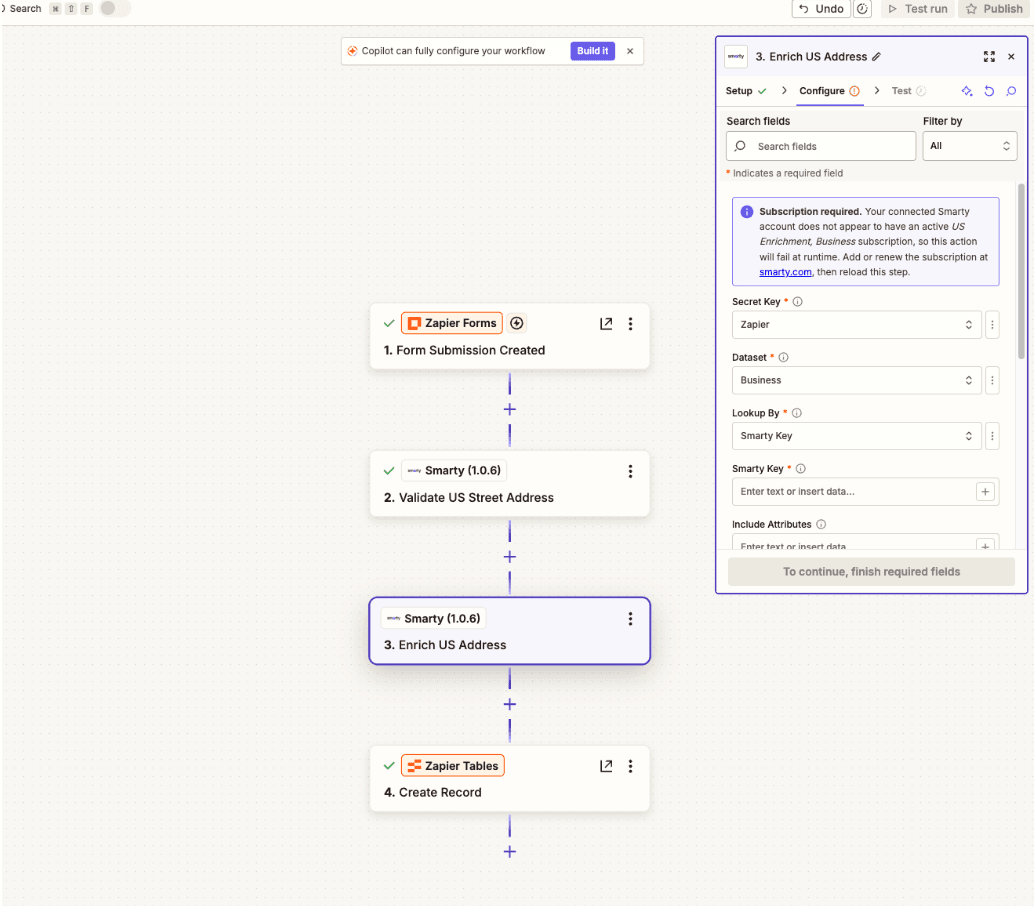
- Build a Zap and choose any trigger — a new form submission, a new spreadsheet row, a new CRM record, anything in Zapier's catalog that produces an address to clean.
- Add a Smarty step and pick an action. Search for Smarty in the action picker and choose the one that fits your data:
- Validate US Street Addresses (Batch) — Up to 100 US addresses at once, supplied as line items.
- Enrich US Address — Append property, geo-reference, secondary, or business data to a US address.
- Validate US Street Address — A single US address.
- Verify International Street Address — A global address.
- Choose your connected account and Secret Key. Select which Smarty connection to use. If your account has more than one API key, pick the Secret Key this step should use (the first active key is selected by default). If the action needs a Smarty subscription your account doesn't have, a notice appears here — add it at smarty.com before continuing.
- Fill in the Smarty input fields. These vary by action:
- Validate US Street Address / Batch — Street is the only required field; map “City,” “State,” and “ZIP Code” when you have them. US validation always uses enhanced matching, so matched results include the Smarty Key identifier.
- Enrich US Address — Choose a “Dataset” and “Lookup By” method (Smarty Key, Address, or Business ID) and supply the matching value.
- Verify International Street Address — Country is required; provide either a Freeform Address or Address Line 1 plus the structured fields.
- Test the step. Zapier sends a real request to Smarty and shows the standardized, flattened result so you can confirm your mapping before going live.
- Use the results downstream. Every field in Smarty's response is individually mappable. Drop verified fields — delivery_line_1, components_zipcode, smarty_key, match_status, match_status_reason, and so on — into later steps, and branch on Match Status (see below) to route good and bad addresses differently. Then turn the Zap on.
Branch your Zap on match status
Every US validation (single and batch) returns a Match Status:
| Match Status | What it means | What qualifies it and the exact Match Status Reason returned |
|---|---|---|
| Match | The address is valid and matches a record in Smarty's authoritative datasets. | A postal or non-postal match, or a DPV-confirmed address (DPV match code Y). Reason: enhanced-match: postal-match, enhanced-match: non-postal-match, or DPV confirmed. |
| Match With Exceptions | The address matched a valid address, but with issues or warnings attached. | A match that also carries an exception, such as a missing or unrecognized secondary (apartment/suite), ignored input, a flagged DPV footnote, or a DPV match code of S (secondary ignored) or D (secondary missing). Reason: the exception flag(s) (missing-secondary, unknown-secondary, ignored-input); DPV footnotes: followed by the flagged code(s) (F1, P1, RR, R1, R7, U1, TA); DPV confirmed primary; secondary information ignored.; or DPV confirmed primary; secondary information missing. |
| No Match | The address is invalid. No matching record was found in Smarty's datasets. | No match indicators in the response — an enhanced match of none, a DPV match code of N, or none at all. Reason: enhanced-match: none, DPV did not confirm the address, no match indicators in response, or no analysis returned. |
Use these in a Zapier filter or path to automatically route results. For example, write confirmed matches back to your CRM while sending No Match addresses to a manual-review path. International verification does not use Match Status. The Verify International Street Address action instead returns a separate Verification Status field; for its possible values, see the International Street Address API reference.
Good to know
Subscription warnings: Each action knows which Smarty subscription is required. If your connected account is missing the required product, a notice appears at the top of the step's setup, prompting you to add it on smarty.com before the Zap runs.
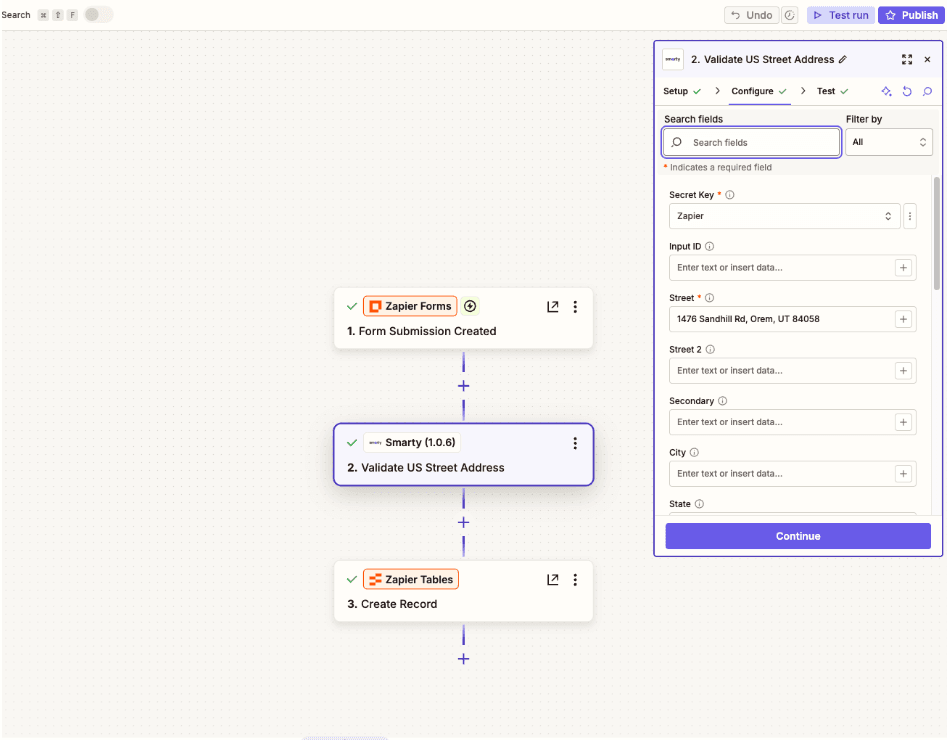
Choosing a secret key: If your Smarty account has several API keys, each step has a “Secret Key” dropdown, allowing different Zaps to use different keys from the same connected account. The first active key is selected by default.
License selection: License selection. Every Smarty action includes a License dropdown that lists only the licenses tied to an active subscription on your account, matched to that action's product — so you're choosing from licenses you actually hold rather than guessing a license string. (If your subscription data can't be read, it falls back to a free-text field.)
All fields are mappable: Smarty's nested responses are automatically flattened into individual fields, so every value is a draggable item in later steps.
More ways to validate in bulk
Prefer to work outside of Zapier? Smarty also offers:
Was this helpful?