
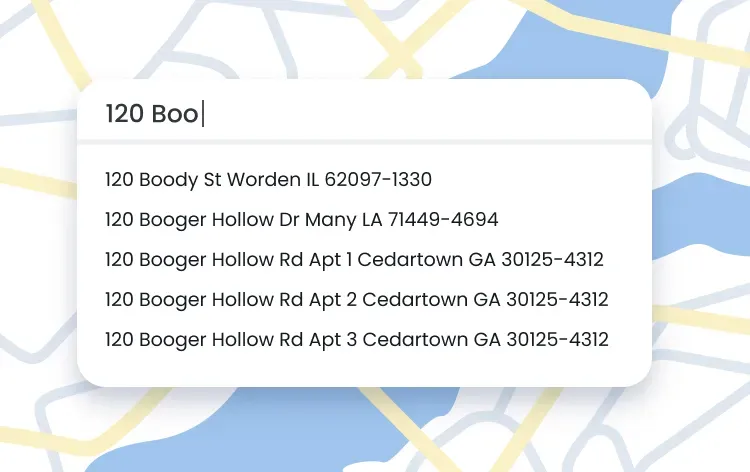

Google’s Autocomplete API is a form builder that reduces typos, speeds form fills, and gets people to the thank-you page faster. If you’ve ever typed into an Address form and watched the rest magically appear, that’s address autocomplete technology. It powers an ecommerce checkout page, delivery apps, and sign-ups, but there are many address autocomplete providers out there.
Do you stick with Google address autocomplete (via the Google Autocomplete API / Google Places autocomplete / Google Maps's autocomplete API) or use a deliverability-first tool like Smarty?
It depends on what you’re building.
This guide explains how Google works, how to set it up, where it falls short, what other options exist, and when Smarty is the better fit. In it, we’ll cover:
- What is the Google Address Autocomplete API?
- How the Google Places autocomplete API and Google Maps API work
- Example of a Google address autocomplete request and response
- Understanding Google autocomplete predictions and place details
- Google Places's autocomplete API setup guide (Google Maps's autocomplete API)
- Google autocomplete cost & sessions
- Understanding Google autocomplete API: Capabilities and limitations
- Alternatives to the Google Address Autocomplete API
- Google Autocomplete API vs Smarty: Two different approaches
- Choosing the right address autocomplete solution for you
- Why teams switch to Smarty’s autocomplete
- Choose smarter, not harder
- Experience the Smarty difference
- Frequently asked questions (FAQs)
You can click around to the section that piques your immediate interest, try out some of Smarty’s autocomplete tools (international or US) for free, or keep reading ahead for a more structured explanation of the Google Address Autocomplete API and comparisons.
What is the Google Address Autocomplete API?
You’ll see different names for the same API because… well, it’s the internet. People aren’t great at using official titles:
- Google Autocomplete (New) This is the official and newest title according to Google
- Google Places autocomplete API
- Google Maps autocomplete / Google Maps API
- Google Places's autocomplete
All of these names essentially refer to the same thing.
Google’s autocomplete API (part of the Google Maps Platform) uses the Google Places API to return location-based suggestions from the Google Places database.
Quick example of what this looks like in action: Type 1600 Amphi… in an address field, and you’ll see 1600 Amphitheater Parkway, Mountain View, CA in a dropdown menu. That saves keystrokes, sure, but this address isn’t a guaranteed valid, mailable shipping address.
How the Google Places autocomplete API and Google Maps API work
Google’s Places autocomplete API predicts likely addresses or places as someone types into a form, resulting in fewer keystrokes for users, fewer typos, faster form fills, and lower cart abandonment rates for you.
Google takes what is typed, mixes typed text with context (like location), and returns 2 two key outputs:
- Display string: What shows up in the dropdown
- Place ID: A unique identifier you use to fetch place data fields
When you send a request to the Google autocomplete API, you’ll need a few necessary parameters and can add optional filters.
What you send (inputs you control)
Required
input: What the user has typed (e.g., "1600 Amp").key: Your Google API Key (restrict by referrer/IP for security).Sessiontoken: A one-time UUID that ties all keystrokes for this address into one session and keeps billing predictable.- Start a fresh token when typing begins.
- Send it with every request to google address autocomplete.
- End the session with Place Details or an Address Validation call.
- If you skip the terminating call, Google may treat each keystroke as a separate, billable request.
Optional filters
types: Restrict results by place types (e.g., address, establishment, (cities))components: Limit to specific countries or regions (e.g., country:us)location+radius: Bias results toward a geographic areaLanguage: Control the language of the returned text
Google then ranks autocomplete address results based on:
- How well the input matches a known place
- Whether the place is close to the user’s location
- How often does that place get picked by others
- Google’s global Places database (not official postal data)
That’s the core loop: send typed text (+ sessiontoken and filters) to Google Places Autocomplete, show predictions, and use the Place ID to pull the real, structured address when the user picks one.
Example of a Google address autocomplete request and response
Here’s a simple request using Google’s Autocomplete API (sometimes called the Google Maps autocomplete API or Google Places's autocomplete API).
GET https://maps.googleapis.com/maps/api/place/autocomplete/json
  ?input=1600+Amp
  &types=address
  &components=country:us
  &key=YOUR_API_KEY
  &sessiontoken=a1b2c3d4-e5f6-7890-abcd-ef1234567890
Important: Lock down your Google API key with restrictions (HTTP referrers, IP addresses, or API limits) to protect against unauthorized usage, quota exhaustion, and unexpected costs.
This JSON output shows how the Google Address Autocomplete API delivers prediction results.
{
  "predictions": [
    {
      "description": "1600 Amphitheatre Parkway, Mountain View, CA, USA",
      "place_id": "ChIJ2eUgeAK6j4ARbn5u_wAGqWA",
      "structured_formatting": {
        "main_text": "1600 Amphitheatre Parkway",
        "secondary_text": "Mountain View, CA, USA"
      }
    }
  ],
  "status": "OK"
}
Understanding Google autocomplete predictions and place details
Here’s the quick tour of what’s really happening behind the scenes
- Start typing Each keystroke sends what you’ve typed, a session token (the unique UUID for this session), and any filters to Google Places Autocomplete (the Google Autocomplete API).
- See instant suggestions You get a dropdown of likely matches (addresses or places). These are predictions.
- Pick a suggestion to get an address On click, your app calls Place Details with the place_id to fetch the complete, structured address (street number, route, city, state, postal code, country).
- Optional safety checks
- Address Validation to standardize/confirm it’s deliverability.
- Geocoding API to get precise latitude/longitude if needed.
Why the session token matters: it groups all keystrokes into one session, so Google treats the interaction as a single flow (better billing behavior and more consistent results).
Example session token generation
// Generate a unique session token (UUID v4)
const sessionToken = crypto.randomUUID(); // Modern browsers
// or use a library like uuid: uuidv4()
Google Places's autocomplete API setup guide (Google Maps's autocomplete API)
Before you dive into code, you'll need to set up your Google Cloud project.
Step 1: One-time setup of the Google Cloud Project
- Create a Google Cloud project and enable billing
- Enable these APIs:
- Maps JavaScript API (for widgets)
- Places API (for autocomplete & place details)
- Address Validation API (optional, but great for shipping)
- Generate and secure your API keys:
- Browser key: Restrict by referrer (e.g., https://yourdomain.com/*)
- Server key: Restrict by IP address
*Tip: Proper API key restrictions prevent unauthorized usage and unexpected billing spikes.
Step 2: Choose your integration path: Option A - JavaScript widget (easiest) or Option B - Programmatic API (complete control)
Option A — JavaScript Widget (Fastest)
Use Google's PlaceAutocompleteElement (auto-manages session tokens).
Example:
<script>
  (function() {
    const script = document.createElement("script");
    script.src = "https://maps.googleapis.com/maps/api/js?key=YOUR_API_KEY&libraries=places&loading=async";
    script.async = true;
    script.defer = true;
    document.head.appendChild(script);
  })();
</script>

<script>
  async function initAutocomplete() {
    try {
      const { PlaceAutocompleteElement } = await google.maps.importLibrary("places");
      const input = document.getElementById("address");
      if (!input) return;

      const autocompleteEl = new PlaceAutocompleteElement({
        inputElement: input
      });

      // Optional filters:
      autocompleteEl.componentRestrictions = { country: ["us"] };
      // autocompleteEl.types = ["address"]; // Note: types parameter, not includedPrimaryTypes
      // autocompleteEl.bounds = { /* LatLngBounds */ };
      // autocompleteEl.strictBounds = false;

      autocompleteEl.addEventListener("gmp-placeselect", async (e) => {
        const place = e.detail.place;
        await place.fetchFields({
          fields: ["formattedAddress", "addressComponents", "location"]
        });
        console.log("Selected place:", place);
        // Access: place.formattedAddress, place.addressComponents, place.location
        // Optionally validate before saving
      });
    } catch (err) {
      console.error("Failed to initialize autocomplete:", err);
    }
  }

  if (document.readyState === "loading") {
    document.addEventListener("DOMContentLoaded", initAutocomplete);
  } else {
    initAutocomplete();
  }
</script>
Note: The JavaScript widget uses the older Maps JavaScript API for autocomplete, not the new Places API. Filter parameters differ from the REST API.
Option B — Programmatic (Custom UI; Server or Client)
Step 1: Autocomplete (Places API New)
Example:
curl -X POST "https://places.googleapis.com/v1/places:autocomplete" \
  -H "Content-Type: application/json" \
  -H "X-Goog-Api-Key: YOUR_API_KEY" \
  -H "X-Goog-FieldMask: suggestions.placePrediction.placeId,suggestions.placePrediction.text" \
  -d '{
    "input": "1600 Amp",
    "includedRegionCodes": ["us"],
    "includedPrimaryTypes": ["street_address","premise"],
    "locationBias": {
      "circle": {
        "center": {"latitude": 37.423, "longitude": -122.084},
        "radius": 50000.0
      }
    },
    "sessionToken": "a1b2c3d4-e5f6-7890-abcd-ef1234567890"
  }'
Step 2: Place Details (Places API New)
Example:
curl -X GET \
  "https://places.googleapis.com/v1/places/ChIJ2eUgeAK6j4ARbn5u_wAGqWA?sessionToken=a1b2c3d4-e5f6-7890-abcd-ef1234567890" \
  -H "X-Goog-Api-Key: YOUR_API_KEY" \
  -H "X-Goog-FieldMask: formattedAddress,addressComponents,location"
Key notes:
- Fields use camelCase (
formattedAddress,addressComponents) - Request only the fields you need to minimize latency and cost
- Custom flows must manually manage
sessionToken(use the same token for autocomplete and details calls) - The Places API (New) uses different endpoints and parameters than the legacy Places API
Step 3: Setup & cost control (the essentials)
Session tokens
- Generate a fresh UUID for each user typing session
- Include the same token on every autocomplete request
- End with one terminating call (Place Details or Address Validation)
- Session tokens group requests for billing optimization
Field masks
- Only request fields you'll use (e.g.,
formattedAddress,addressComponents,location) - Each field type has different costs
Filters
includedPrimaryTypes: Limit to relevant types (["street_address","premise"])includedRegionCodes: Restrict to specific countries (["us"])locationBias: Prefer results near a location (doesn't exclude others)locationRestriction: Strictly limit to a geographic area
Security
- Monitor usage in Cloud Console
- Set up billing alerts
- Use separate keys for browser vs. server
- Enforce HTTP referrer restrictions (browser keys)
- Enforce IP address restrictions (server keys)
UX best practices
- Prompt for Apt/Suite/Unit if missing from autocomplete
- Allow manual address entry with validation
- Keep the drop-down keyboard-accessible
- Show loading states during API calls
- Handle errors gracefully
API comparison
| Feature | JavaScript widget | Places API (new) REST | Legacy Places API |
| Session tokens | Auto-managed | Manual | Manual |
| Endpoint | Maps JS API | places.googleapis.com/v1 | maps.googleapis.com/maps/api |
| Filter params | types, componentRestrictions | includedPrimaryTypes, includedRegionCodes | types, components |
| Best for | Quick integration | Custom UI, server-side | Legacy systems |
Google autocomplete cost & sessions
A session begins with the first autocomplete request that includes a sessiontoken and ends when you call Place Details or Address Validation with that same token.
- No terminating call → Google bills every keystroke individually.
- Properly closed session → keystrokes are grouped, and you pay only for the terminating call.
Two main billing paths
- Place Details essentials: The first 12 autocomplete requests are billable; everything after that is free within the session.
- Place Details non-essentials (or address validation): All autocomplete requests are free; you just pay for the final call.
Practical cost control
- Always generate a fresh
sessiontokenwhen typing begins - End sessions with one terminating call (Place Details or Address Validation, not both)
- Use a tight
fieldMaskto keep payloads small and responses faster - Track spend in Cloud Console, set alerts, and watch for spikes
Now you know how to set up autocomplete, launch with confidence, and maintain predictable billing. That covers the “how.”
But just because it’s wired up correctly and the pricing looks under control doesn’t mean Google Autocomplete is always the right fit for every use case.
Let’s break down its capabilities and limitations to understand the technical setup and the trade-offs that matter once you rely on it in production..
Understanding Google autocomplete API: Capabilities and limitations
Google's autocomplete API is popular because it's fast, easy to plug in, and works almost anywhere in the world. However, its core strength (place of interest prediction) is also its main limitation. Understanding that distinction will help you decide when it's the right tool and when you need something different.
When the Google autocomplete API works well
Google Places's autocomplete really shines when speed and convenience (notice we didn’t say accuracy) matter most. If users just need quick, familiar suggestions that "feel right" as they type, it delivers.
Here's where Google’s Address Autocomplete API shines:
- Discovery use cases: Apps that need more than just an address, such as travel platforms, booking tools, restaurant discovery apps, and navigation services. These use cases benefit because Google blends addresses, landmarks, and points of interest (POIs).
- Everyday convenience: Fewer keystrokes improve completion rates and get users to the “thank you” page for ecommerce checkouts, delivery apps, and signup forms.
- Global coverage: With data spanning nearly every country, it's appealing for international reach without juggling multiple integrations.
- Familiar UI: Many users instantly recognize Google's dropdown look and feel, which builds trust and speeds up selection.
- Configuring filters: You can modify filters, such as
includedPrimaryTypes,includedRegionCodes, orlocationBias, to further steer results toward your most relevant markets and cut out noise.
The core limitation: Prediction vs. validation
At its heart, the Google Address Autocomplete API is a prediction engine. It guesses likely addresses or places based on partial text. But it's not an address validation API. It doesn't guarantee the result is real, complete, or mailable.
That distinction explains most of its weaknesses:
- Accuracy gaps: Predictions can return addresses that don't exist, are outdated, or were interpolated (like a pin dropped in the middle of a block). Often, these interpolated guesses appear higher in the suggestions than the correct and current ones. Slate documented how easy fake addresses can appear in Google Maps.
- Missing details: Apartment numbers, unit designators, or postal codes often don’t appear in the suggestions.
- Non-standardized formatting: The exact location can be stored multiple ways (e.g., “123 Main St Apt 4B” vs “123 Main Street #4B”), which creates mismatches downstream
What this means for your business
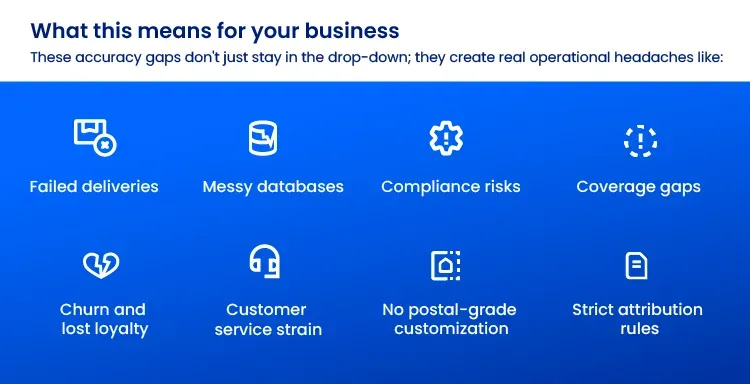
These accuracy gaps don't just stay in the drop-down; they create real operational headaches like:
- Failed deliveries: Postal systems flag invalid or incomplete addresses, which can delay or prevent delivery. About 8% of first-time deliveries fail.
- Messy databases: Non-standard formats can create duplicate or conflicting records in CRMs, billing systems, and support systems.
- Compliance risks: In industries like healthcare, finance, and telecom, "close enough" isn't acceptable. Incorrect addresses can lead to compliance failures or trigger fraud-prevention measures.
- Customer service strain: Every delivery issue generates support tickets and "where's my order?" calls, wasting time and resources and burning out your support employees.
- Churn and lost loyalty: 73% of shoppers have experienced a failed delivery, and 23% stopped ordering from that company afterward. Another 69% say they wouldn't shop again with a brand that delivers late. Customers don't blame Google's API. They blame you.
- Coverage gaps: Data in rural areas, developing countries, and new neighborhoods can be incomplete or outdated. New commercial developments may take several months to appear.
- No postal-grade customization: Google isn't USPS CASS-certified, doesn't enforce strict postal formatting. This means they can't guarantee compliance for regulated industries.
- Strict attribution rules: You must display "Powered by Google" and adhere to caching limits. Place IDs can be stored indefinitely, but most other Places content can’t.
Use the Google address autocomplete (via Google Place Autocomplete/Google Maps autocomplete API) for speed, familiarity, and discovery. You can solve this problem by adding a validation step before storing or shipping, but that just costs your business more money.
What if there were an option that validated and autocompleted at the same time in the same, standardized way? Wait… we think we know someone who does that 😘. If you need postal-grade, deliverable addresses by default, that’s where alternatives like Smarty are often the better fit.
Alternatives to the Google Address Autocomplete API
The Google Autocomplete API is powerful, but it isn't always the right fit. If you need USPS-verified addresses, postal-grade validation by default, or pricing that only charges on final selection, here are the leading alternatives:
| Provider | What it returns | Coverage | Deliverability & validation | Best for |
| Google Places's Autocomplete (New) | Predictions for addresses, places, and plus codes from Google’s Places database | Global | Not postal-guaranteed. Pair with an address validation API to standardize and check deliverability | Global apps that also need POIs and landmarks |
| Smarty’s autocomplete (International and US) | US Autocomplete Pro returns USPS-verified addresses; International Autocomplete provides global suggestions | US = 50 states and 5 territories International = 240 countries and territories | US: USPS-verified. International: pair with International or US Street Address verification for postal-grade deliverability | US checkout that must show mailable addresses, international forms with selection-based pricing |
| Melissa Global Express Entry | Autocomplete with verified and standardized addresses from multi-sourced data | Global | Validates as you type, integrates with Melissa validation | Enterprises using Melissa’s verification/data services |
| Precisely Address Autocomplete | Autocompleted addresses + related APIs from the Precisely stack | Global (country list in docs) | Requires Precisely validation endpoints for postal deliverability | Teams standardizing on Precisely’s platform |
| Loqate | Verified and formatted global address autocomplete | US + 250 countries and territories | Postal-grade data from global sources, with strong validation services | Enterprises needing worldwide deliverability and compliance |
The two address data names that dominate ecommerce, checkout, and delivery conversations are Google and Smarty. However, they're built for very different goals, and understanding that difference is key to picking the right one.
Google Autocomplete API vs Smarty: Two different approaches
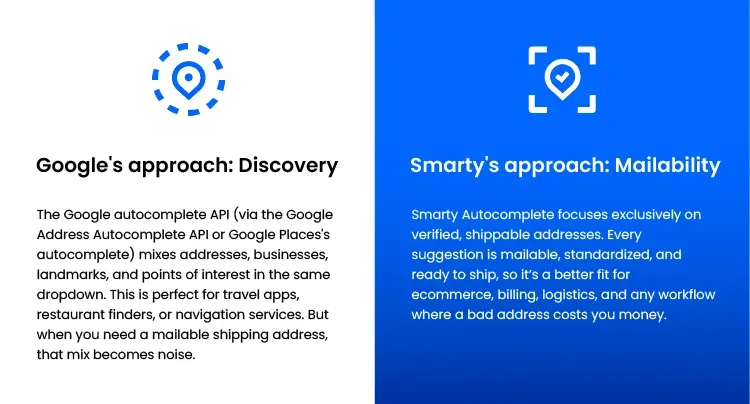
For most teams, the decision comes down to Google or Smarty. Both help users type less and check out faster, but they're solving fundamentally different problems.
Google Autocomplete API asks: "Where do you want to go?"Smarty Autocomplete asks: "Where can we actually deliver this?
Google's approach: Discovery
The Google autocomplete API (via the Google Address Autocomplete API or Google Places's autocomplete) mixes addresses, businesses, landmarks, and points of interest in the same dropdown. This is perfect for travel apps, restaurant finders, or navigation services. But when you need a mailable shipping address, that mix becomes noise.
Smarty's approach: Mailability
Smarty Autocomplete focuses exclusively on verified, shippable addresses. Every suggestion is mailable, standardized, and ready to ship, so it’s a better fit for ecommerce, billing, logistics, and any workflow where a bad address costs you money.
Two APIs for global coverage
Shipping across the U.S. isn’t the same as shipping to Berlin, Tokyo, or São Paulo. Forcing diverse global postal systems into a single API creates compromises: reduced accuracy, slower performance, or features that excel in one region but fail in others.
Smarty also splits the job into two purpose-built products:
- US Address Autocomplete is engineered exclusively for the American postal system. USPS-aligned, CASS-certified, and optimized for PO Boxes, military addresses, and subunits. It even handles alias addresses (previous or alternate addresses linked to the exact geocoded location, capturing how addresses evolve as buildings are renamed or streets renumbered).
- International Address Autocomplete handles global addressing complexity. It covers 240 countries and territories, accommodates 130+ distinct address formats, and supports 9 character sets including Latin, Cyrillic, Arabic, and East Asian scripts. Users input addresses in their native language, and the API handles country-specific subunit terminology (whether it's a "flat" in the UK, "wohnung" in Germany, or "departamento" in Mexico). Built-in auto-correction catches common typing mistakes and regional variations.
Separate APIs mean zero compromise. The US API isn't weighed down by international edge cases, and the international API isn't constrained by USPS-specific requirements. Each optimizes its validation logic, data sources, and performance for its specific use case, delivering superior accuracy and speed.
Address autocomplete API comparison
| Feature | Google Places | Smarty US | Smarty International |
| Primary focus | POI discovery + addresses | Actual, verified US addresses, including subunits/secondary indicators | Postal-grade global accuracy |
| Data quality | Mixed POIs and addresses (may include non-deliverable results) | Only verified, mailable addresses | Fully verified global addresses |
| Coverage | Global with strong POI data | Complete US coverage, including territories | 240 countries and territories |
| Address types | Businesses, landmarks, partial addresses | Residential, commercial, PO Boxes, military | All standardized addresses per country |
| Keystrokes needed for suggestions | 1-3 keystrokes | 1 keystroke | 1 keystroke |
| Data rights | Place IDs only (no storage or reuse) | Store and reuse freely | Store and reuse freely |
| Branding | Required "Powered by Google" | 100% white-label | 100% white-label |
| Pricing | Pay-per-keystroke + API calls | Per-keystroke (avg 5 keystrokes) Priced with this in line to control costs | Per-API call based on results |
Choosing the right address autocomplete solution for you
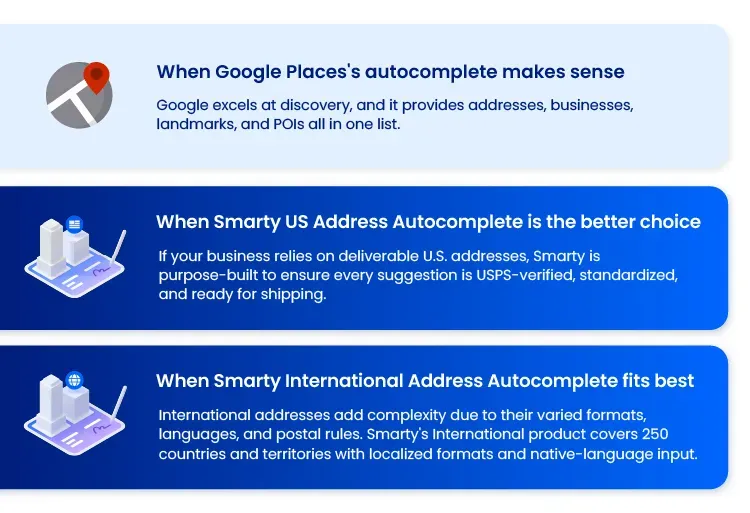
Not every business has the same priorities. The right solution depends on what you're building and who you're serving.
When Google Places's autocomplete makes sense
Google excels at discovery, and it provides addresses, businesses, landmarks, and POIs all in one list. It’s great for:
- Travel and booking platforms: Users search for hotels, airports, or tourist attractions
- Restaurant or business discovery apps: POIs matter as much as street addresses
- Navigation and mapping services: Finding destinations is the priority
- General location-based apps: Context beyond a mailing address is essential
When Smarty US Address Autocomplete is the better choice
If your business relies on deliverable U.S. addresses, Smarty is purpose-built to ensure every suggestion is USPS-verified, standardized, and ready for shipping. We’re ideal for:
- Ecommerce and marketplaces: Capture clean shipping addresses at checkout
- Domestic shipping & logistics: Ensure accurate deliveries and fewer failed attempts
- Utilities and service providers: Confirm availability for specific addresses
- Healthcare billing systems: Where compliance and accuracy are critical
- Insurance and financial services: Avoid compliance risks and failed verification
When Smarty International Address Autocomplete fits best
International addresses add complexity due to their varied formats, languages, and postal rules. Smarty's International product covers 240 countries and territories with localized formats and native-language input. Smarty’s International Address Autocomplete is best for:
- Global ecommerce and marketplaces: Clean entry points for international customers
- International logistics platforms: Standardized addresses for faster customs and shipping
- Apps that need localized input: Let users type naturally in their own language and script
- Companies expanding abroad: Scale into new regions without sacrificing accuracy
*Tip: Many teams use Smarty APIs together; US autocomplete for domestic customers and international autocomplete for everyone else. That way, you deliver a consistent, region-appropriate experience where every suggestion is a real, mailable address.
Why teams switch to Smarty’s autocomplete
Even though Google Places's autocomplete (via Google address autocomplete, the Google autocomplete API, or the Google Maps autocomplete API) is a solid starting point, many teams outgrow it as order volume rises, compliance tightens, or support tickets stack up.
That's when the cracks in prediction-first autocomplete show, and when Smarty's autocomplete becomes the better fit. With Smarty, you get:
Cleaner data up front
- USPS-verified suggestions (US): US Autocomplete Pro only shows addresses that the USPS recognizes as deliverable. No guesses or "almost right" results.
- Standardized international results: International Autocomplete formats correctly per country, so you don't have to clean data later.
- Apartment/suite handling: Sub-premise data (e.g., "Apt 4B," "Suite 210") is captured reliably, cutting failed deliveries.
Expanded coverage
- Beyond USPS: Includes 20M+ non-postal (non-USPS) U.S. addresses (new builds, rural routes, campus housing) often missed elsewhere.
- Global accuracy: Supports 240 countries, ~130 address formats, and 9 scripts, allowing your customers to type naturally and still get a correct, mailable result.
Predictable API usage & cost control
- Key management: Track usage per key and set per-key limits for tighter control over engineering and finance.
- Fewer surprises: No session-token gymnastics to avoid runaway billing.
Real support, not just docs
- Talk to humans: Implementation help, troubleshooting, and best-practice guidance.
- Built to integrate: Easier to measure, safer to trust in production than a pure prediction engine.
Choose smarter, not harder
Prediction alone doesn't guarantee mailability. Google Maps’s autocomplete suggestions can still fail shipping or compliance checks, creating wasted time, money, and frustrated customers.
Smarty flips the default: every suggestion is a real, shippable address. Get it right the first time, and everything downstream works better: cleaner CRM (like HubSpot), faster onboarding, fewer failed deliveries, reduced checkout abandonment, tighter compliance, and happier customers.
Already using Google for discovery? Keep it. Just validate with Smarty before you store the addresses in your master database or ship anything there.
Experience the Smarty difference
The best way to know if Smarty fits your needs is to try it. See how fast results appear, how accurate suggestions are, and visualize how much better your checkout page and brand experience are when every address is real and deliverable.
When you get the address right the first time, everything else just works.
Frequently asked questions (FAQ)
What is the difference between autocomplete and validation?
Autocomplete helps users by predicting addresses or places as they type. It's designed to be fast and reduce typing, offering suggestions rather than final answers. After a user selects a suggestion, validation steps in to standardize the address, fill in any missing parts, and provide information about mailability. In Google's system, you typically use Places autocomplete (new) for suggestions, then Place Details to obtain more information, and finally address validation to confirm and correct everything before saving, shipping, or making decisions based on that address.
Does the Google Address Autocomplete API verify addresses?
No. Google Places's autocomplete produces predictions from partial input; it doesn’t prove that an address exists or is deliverable. To verify, complete the flow with an address validation tool that standardizes addresses to local postal formats and returns deliverability indicators, or fetch fields via Place Details and pass the result to your preferred validator. In U.S. workflows, many teams validate for DPV and sub-premise capture before printing labels. The bottom line is that autocomplete speeds entry, and validation makes the data trustworthy.
Can I use Google Places's autocomplete and Smarty together?
Yes. A typical pattern is to keep Google for familiar, global suggestions and POIs, then validate with Smarty before storing that data or shipping to that location. Use Google Autocomplete to gather intent quickly; on selection, fetch fields with Place Details and send them to Smarty’s US Street Address or Smarty’s International Street APIs.
Smarty standardizes components and returns deliverability signals (US suggestions can be USPS-verified). This hybrid approach preserves the Google UI while ensuring clean, mailable addresses and fewer downstream fixes.
Why does Google’s autocomplete sometimes give incorrect or incomplete addresses?
Because it predicts rather than verifies. Google’s autocomplete tries to infer intent from partial text and nearby context, so it may omit apartment or suite numbers, surface POIs instead of addresses, or include new and rural locations that aren’t yet postal-ready. Over-aggressive location bias can also tilt results the wrong way.
To improve accuracy, restrict by type and region, prompt for missing sub-premise information, and always run a validation step to standardize, correct, and confirm deliverability before fulfillment.
Is the Google Maps autocomplete API free?
Nope! Pricing depends on sessions. The Google Address Autocomplete API flow is cost-effective when you pass a sessiontoken and end with Place Details or Address Validation. Without that, you pay per keystroke.
Google Maps’s Platform uses paid SKUs with free monthly usage caps and session-based rules for Places autocomplete (new). Your costs depend on how you structure sessions and which call ends them (usually, Place Details or Address Validation). Always send a session token for each typing session and end the flow with a terminating call to avoid extensive per-keystroke billing.
To control latency and constantly monitor quotas, apply API key restrictions, and request only the necessary fields.
Was this helpful?